
Anyone can find your Pinterest account and view your boards with a search on the platform.
Although you cannot completely hide your profile, here are two ways to improve privacy and have control over what Pins and Boards are shared with others:
Hide your profile from search engines
This prevents your Pinterest profile from appearing on search engines like Google and Bing. This is how you do it:
On the Pinterest app
- Launch Pinterest.

Launch Pinterest. - Tap on your Profile picture icon on the homepage.
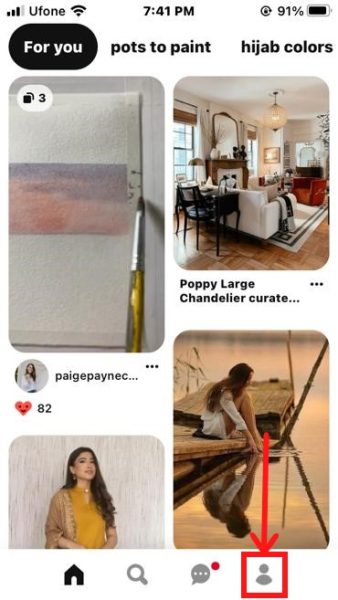
Pinterest Profile picture. - Tap the three dots in the top right of your screen and select Settings.
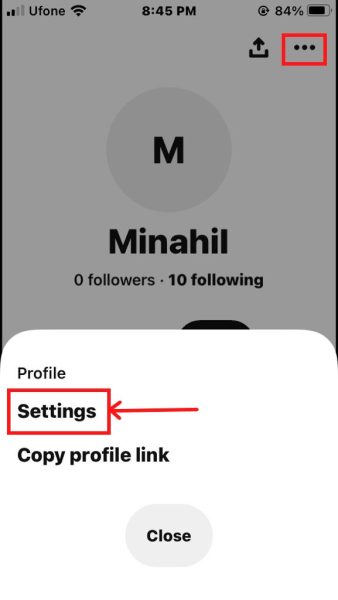
Select Settings. - Choose Privacy and data from the list.
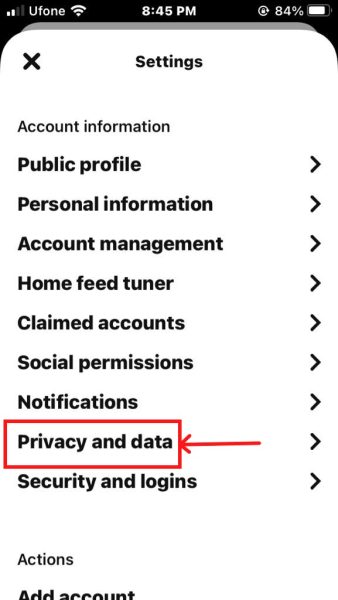
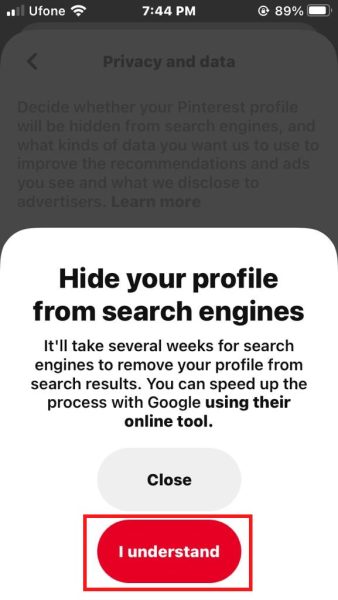
Select Privacy and data. - Turn on the toggle for Search privacy.

Turn on Search privacy. - Choose I understand.
On the Pinterest website
- Log in to Pinterest on the website.

Log in to Pinterest. - Click on the drop-down arrow icon in the top right. Choose Settings.
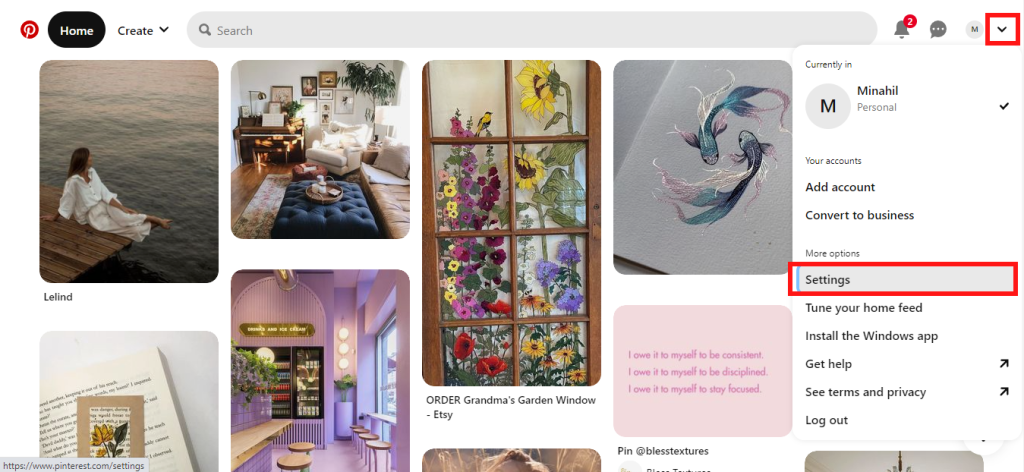
Pinterest Settings on website. - Another list of options appears on the left. Click on Privacy and data. Then, check the box for Hide your profile from search engines to limit the Search Privacy for your Pinterest account.
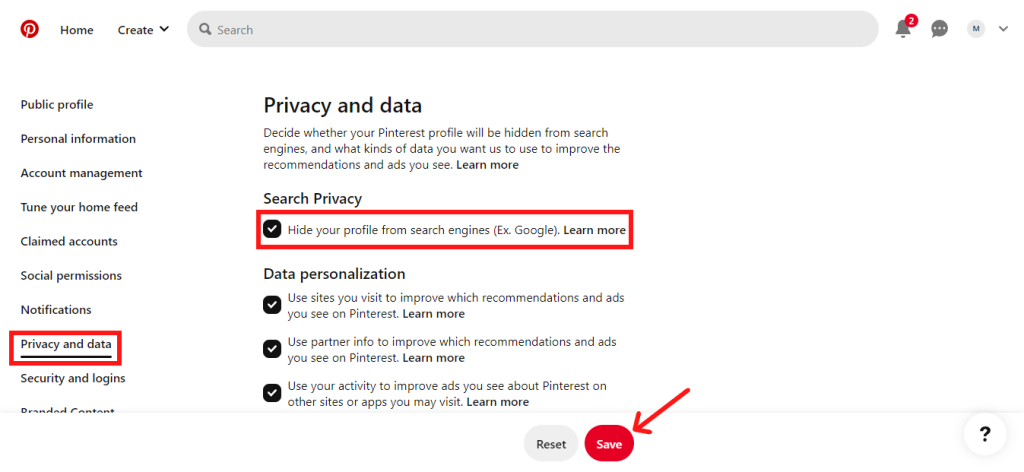
Hide your Profile option. - Click I understand to proceed and save settings.
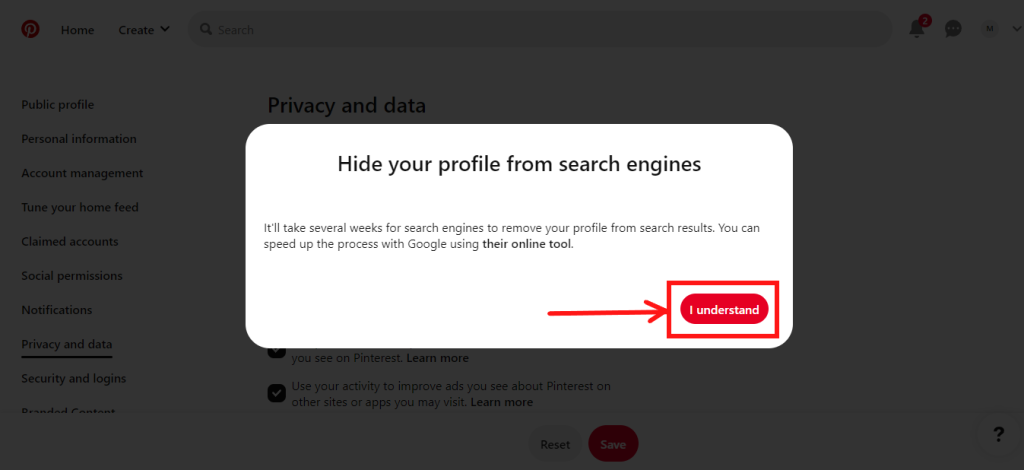
Click I understand.
Creating secret boards
You can create a new secret board or change an existing board to secret.
- No one can view the Pins inside your secret Board, including your followers.
- The Board will not show on your profile.
- If you add new Pins to this Board, they will not appear in your follower’s home feed or elsewhere on Pinterest.
- You can invite specific users to edit and view the content of the Board.
Create a secret board on the Pinterest app
- Go to your Profile page to view all Boards.
Pinterest Profile. - Select the Board for which you want to edit the privacy. Long press the board to activate editing options.
Tap on the pencil icon to make changes.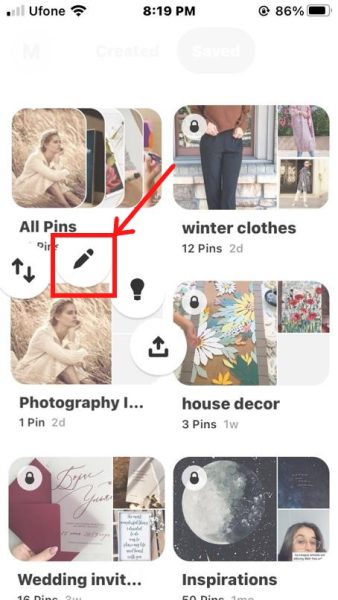
Edit Pinterest board. - Turn on the toggle for Make this board secret and tap Done.
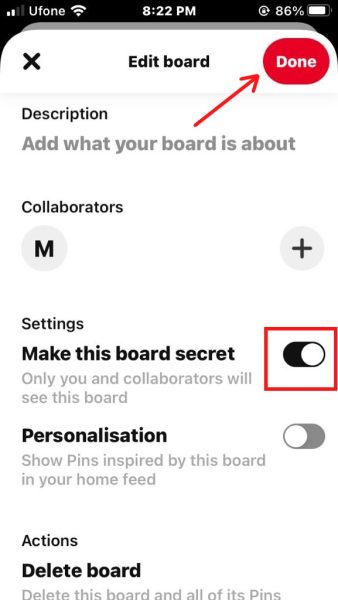
Change the Board’s privacy. - All secret Boards will have a lock icon on the top left.
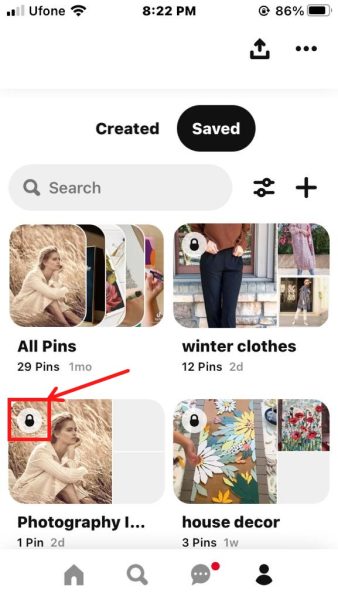
Create a secret board on the Pinterest website
- Click on your profile icon on the top right. Next, scroll through the Saved section and hover over a Board you want to make private. Then, click on the Pencil icon in the bottom right of the Board.
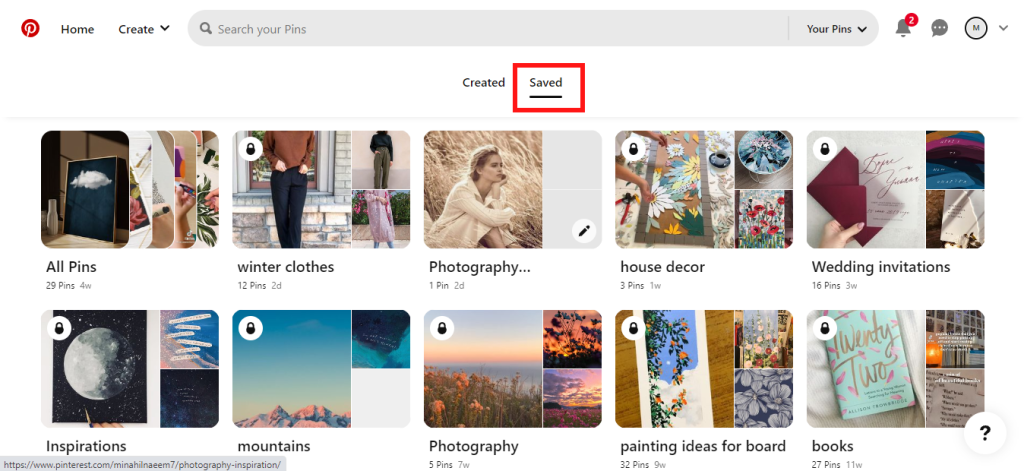
All Pinterest Boards. - Mark the check box next to Keep this board secret. Hit Done. Only you can now view the content of the secret Board.
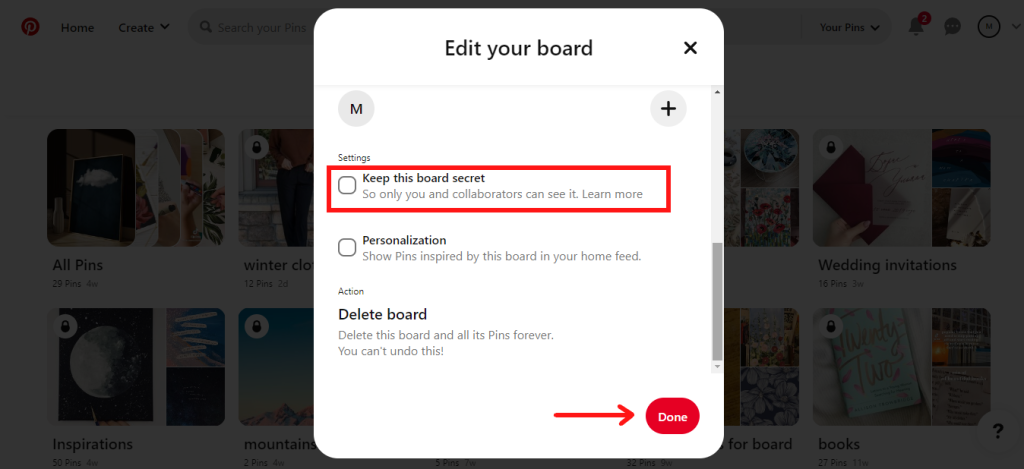
Edit Board privacy. - Secret Boards have a lock icon on the top left corner.
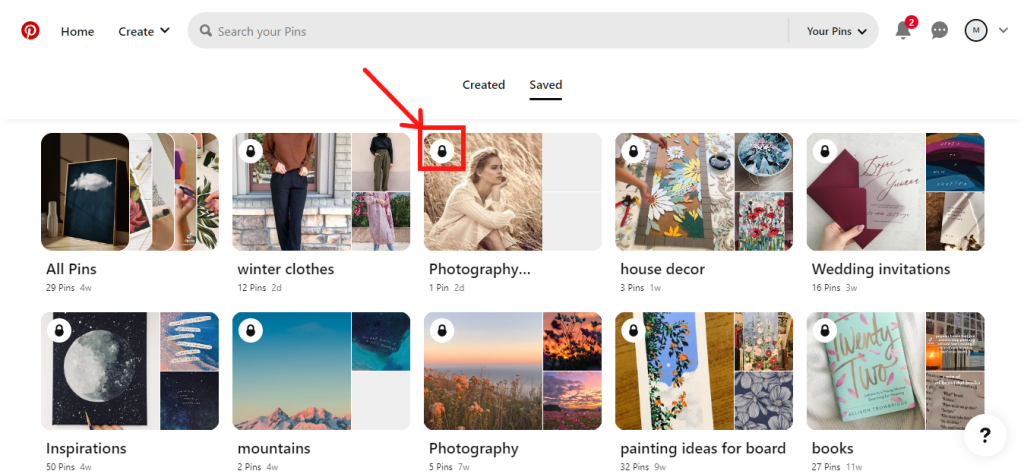
Secret Board icon.
I’m Susan, the founder of Learn Social Media. As a caregiver I regularly work with vulnerable groups, such as with the elderly in nursing homes, and children with disabilities in schools. During my work, I noticed these groups struggle to keep up with new technologies.
When it comes to social media, this often led to feelings of isolation and “being left out”. The thrill I experienced creating TikTok dance videos with children with disabilities, or helping elderly folks reconnect with old friends and loved ones on Facebook, is what inspired me to launch this project.
Read more about my project here: About Learn Social Media. Feel free to contact me at any time at [email protected], I spend my evenings responding to ALL messages!