
If you’ve been invited to join a Facebook group, you’ll see the group’s name and profile picture in your notifications. You can choose to join or ignore the group. If you forgot to respond to a group invite or want to view your invites, there are a few methods to help you.
The only method which allows you to view all your invites on one page is available only on the Android app. However, there are workarounds on other platforms as well.
Method #1: Check all invites from group settings (Android only)
- Launch the Facebook app.
- Tap your Profile picture on the left to open your profile menu.

Tap on the profile picture icon on the left. - Go to Groups.
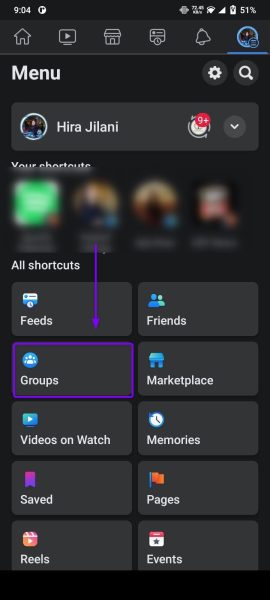
Tap on Groups. - Tap the Settings (gear icon) at the top of the screen.
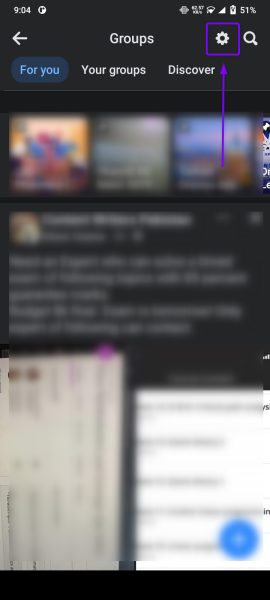
Tap on Settings. - Select Invites from the list.
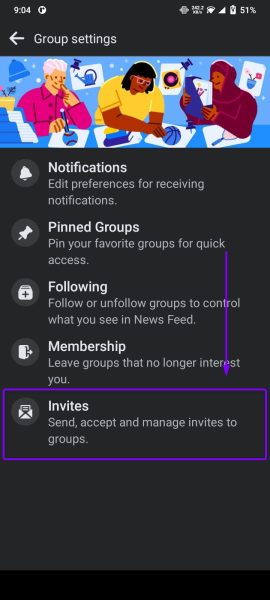
Select Invites - Here you can find and review all your group invites.

You can find all your group invites on this page.
Method #2: Search for the group’s name
If you know the group’s name, you can search for it directly instead of scrolling through notifications:
Android / iPhone
- Launch the Facebook app and tap on the search icon on top.

Tap on the search icon on the top right corner - Search the group’s name and open the group you expect an invite from.

Open the group you are expecting an invite from. - You will find the invitation at the top if you’ve been invited to join that group.
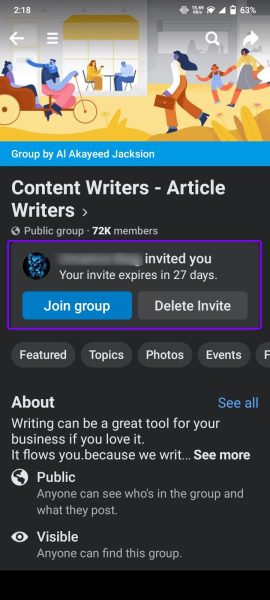
You can see the group invite at the top.
Windows / Mac
- Open Facebook.com and click on the search bar.
- Enter the group’s name for which you want to check if you’ve been invited.
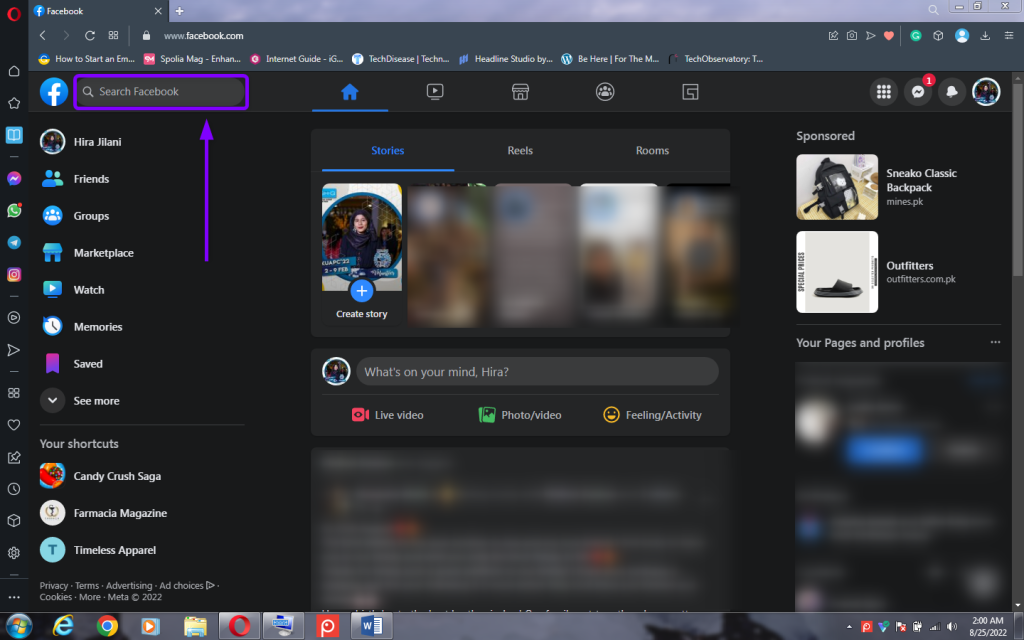
Enter the group name in the search bar. - You will find a notification below the group’s name if there is an invite.
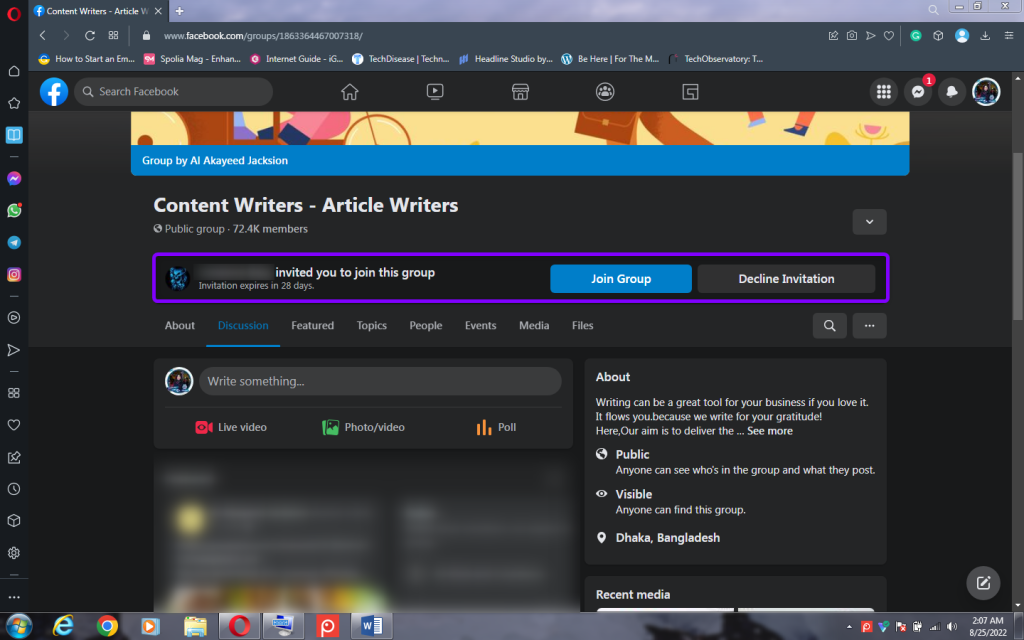
Check if there’s a group invite.
Method #3: Search your Notifications
You can find the invite in your notification list if the invite is recent.
Android / iPhone
- Launch the Facebook app.
- Tap the bell icon to open notifications.
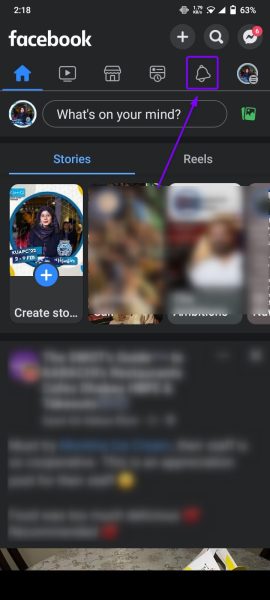
Tap the Notifications icon. - Go through your notifications to find your invite. From here, you can Join or Delete each invite.

Check group invites and Join or Delete them.
Windows / Mac
- Go to Facebook.com and log in.
- Select the Notifications icon on the top right.
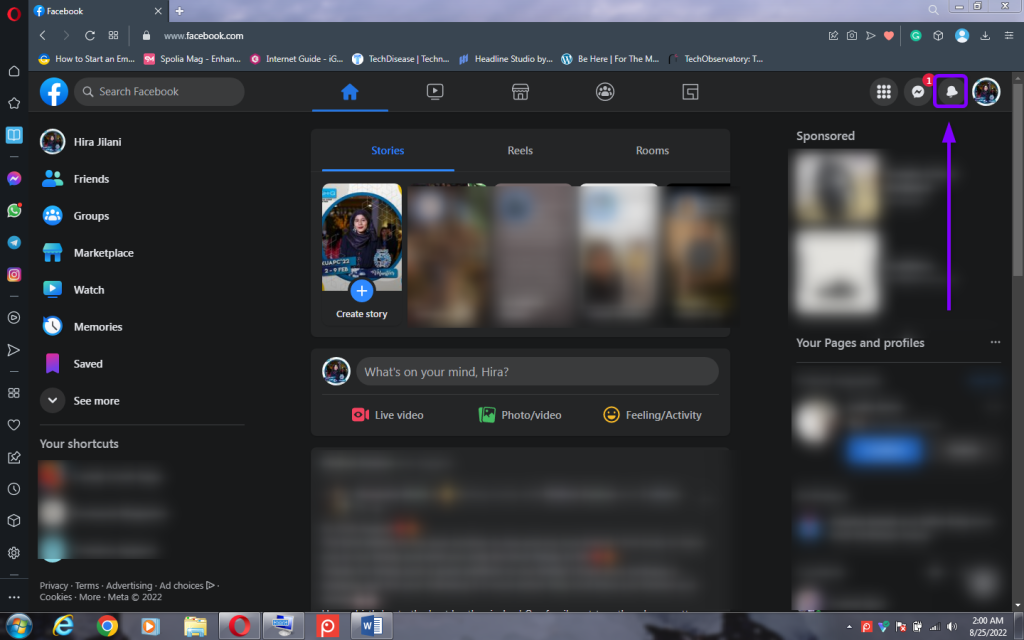
Click on the Notifications icon on the top right. - Scroll through your notifications until you find the invite. Then, you can decide to either Join or Delete each invite.
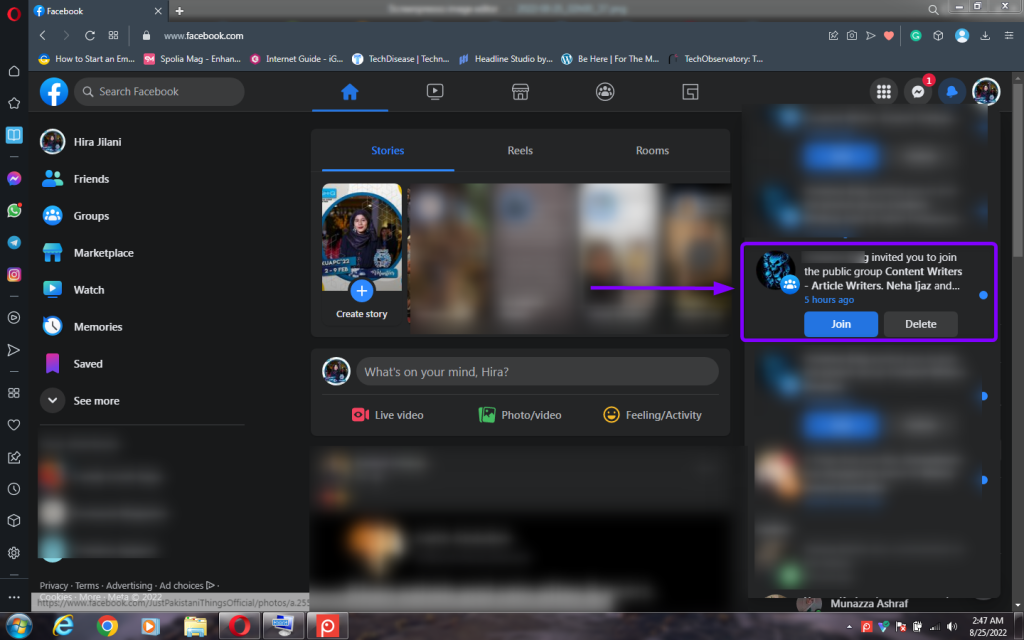
Check the Group invite notification from the list.

I’m Susan, the founder of Learn Social Media. As a caregiver I regularly work with vulnerable groups, such as with the elderly in nursing homes, and children with disabilities in schools. During my work, I noticed these groups struggle to keep up with new technologies.
When it comes to social media, this often led to feelings of isolation and “being left out”. The thrill I experienced creating TikTok dance videos with children with disabilities, or helping elderly folks reconnect with old friends and loved ones on Facebook, is what inspired me to launch this project.
Read more about my project here: About Learn Social Media. Feel free to contact me at any time at [email protected], I spend my evenings responding to ALL messages!