Pinterest has a vast collection of creative user-submitted photos and art. From house décor, food, landscape, and much more, you’re bound to find an image you want to keep!
Although you can Pin the images you like to a Board in your Pinterest account, some users prefer saving or downloading them to their computer or mobile phone. While Pins saved on the Pinterest Boards are only accessible through the app or website, saving them to your device allows you to access the picture even when offline.
Note: many images found on Pinterest are copyrighted. Unless you’re sure of an image’s copyright status, you should only keep it for personal use.
Saving Pictures from Pinterest to your phone
Pinterest images on iPhone and Android can be downloaded through the Pinterest mobile app on your device.
- Launch the Pinterest app and sign in to your account.

Pinterest mobile app login - You can save anything from the home feed or search for images using the magnifying glass icon in the bottom menu of the app.
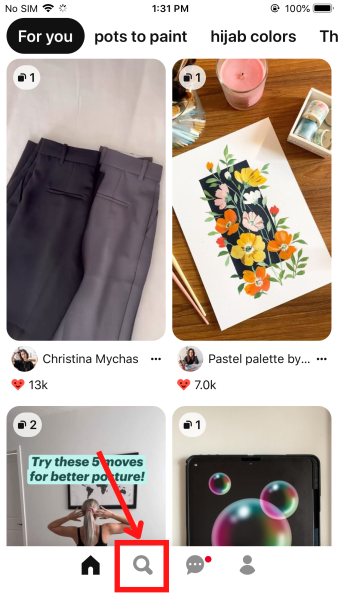
Use the Search tool to search for Pins in the app. - You can also save already Pined images. Tap on your Profile picture icon and open the Pin from the Saved or Created section.

Browse for images under Saved and Created on the Pinterest mobile app - Once you open the Pin, you will have a range of options for the Pin. Tap on the three dots in the top right corner of the screen.

The Menu icon for individual Pins - Select Download image from the list of options.
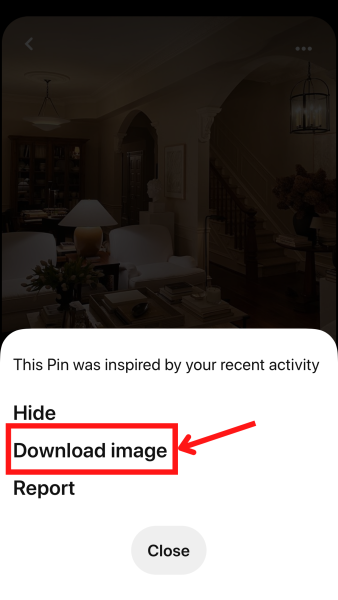
Select Download image to save the Pin to your phone gallery - If you are using this option for the first time, you will have to allow accessibility permission for the Pinterest app. Select OK to allow the app to access your photos.

Allow access for the Pinterest app. - Once the image is successfully saved to the phone gallery, you will see an “Image downloaded!” notification at the top of the screen. Tap on Close to return to the Pin.
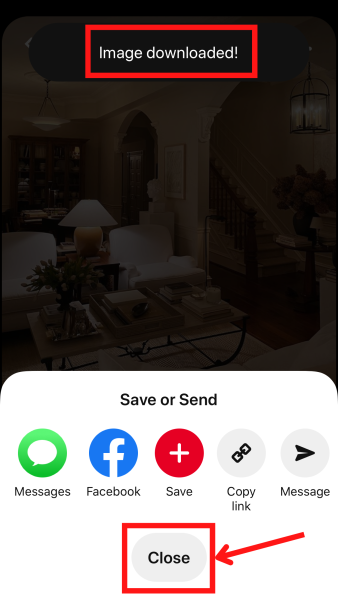
Image downloaded notification at the top. - Open your phone’s Gallery app, and you will find the image saved inside the Pinterest folder.

The Pinterest folder with downloaded Pins in the Gallery
Saving Pictures from Pinterest to your Computer
- Open the Pinterest website on your browser and log in.
- Hover your cursor on the Pin you want to save or search for a specific pin using the top Search bar.
- Hovering the cursor on the Pin will activate a few options. Click on the three dots in the bottom right corner of the Pin. Then, select Download image. Congratulations, you just downloaded the image from the pin!
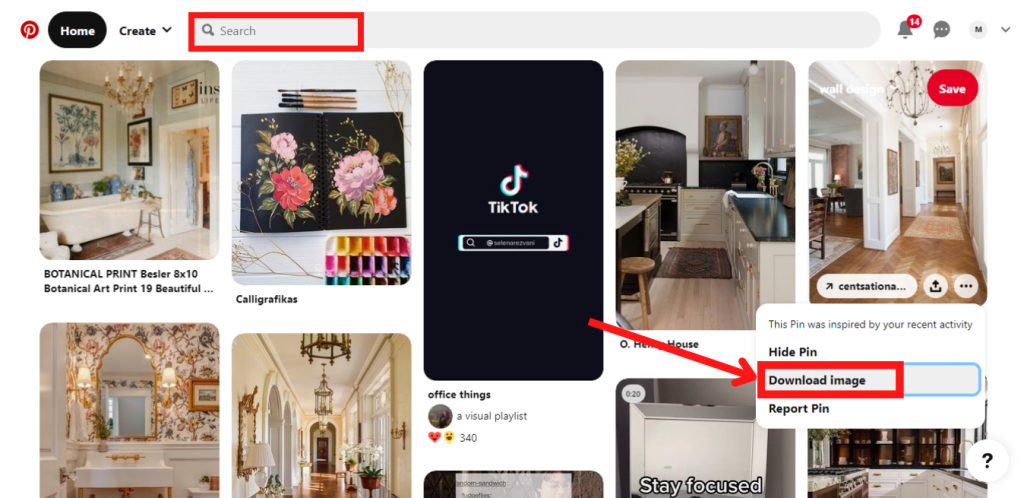
Select download image from the menu - You can also save pictures from your Pinterest Boards. Click on your Profile picture in the top right corner of the home page.
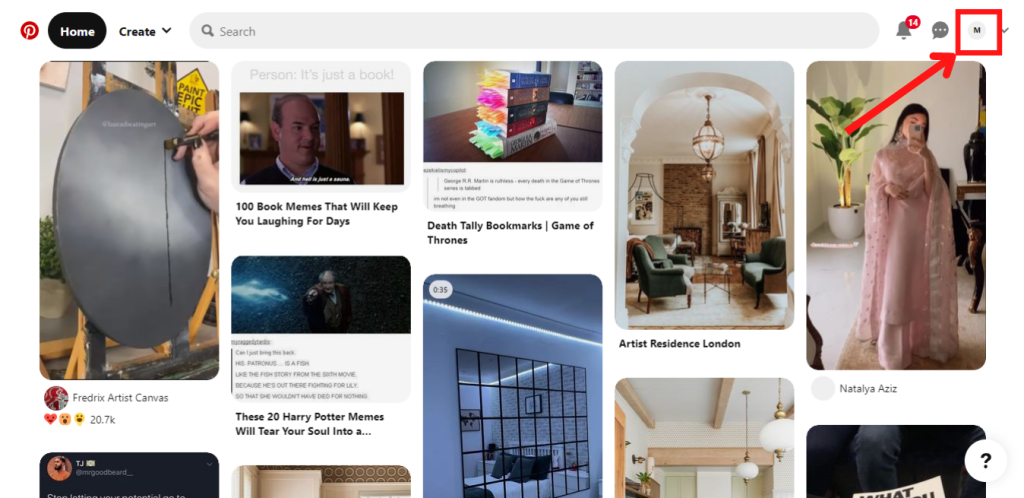
Click on the Profile picture icon. - All Pins are located under the Saved or Created sections. Browse through the Boards to find the Pin you need.
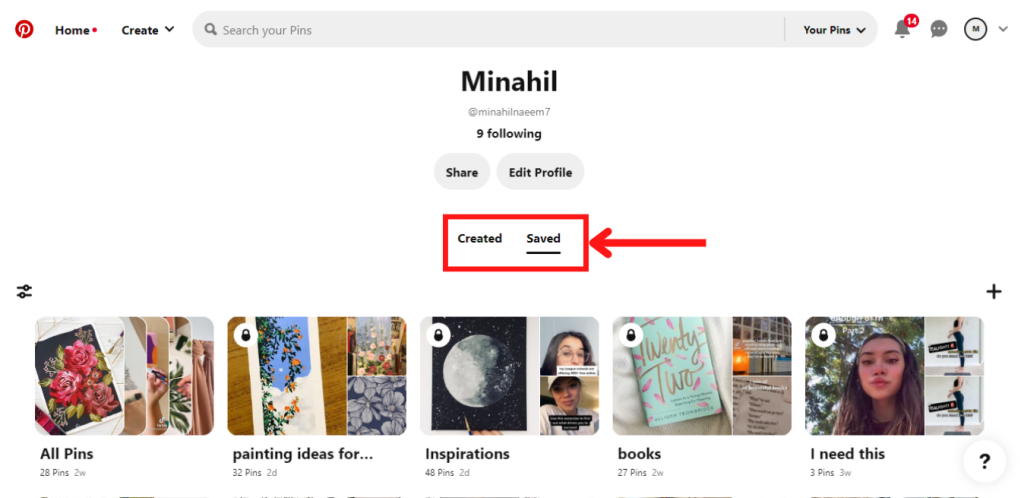
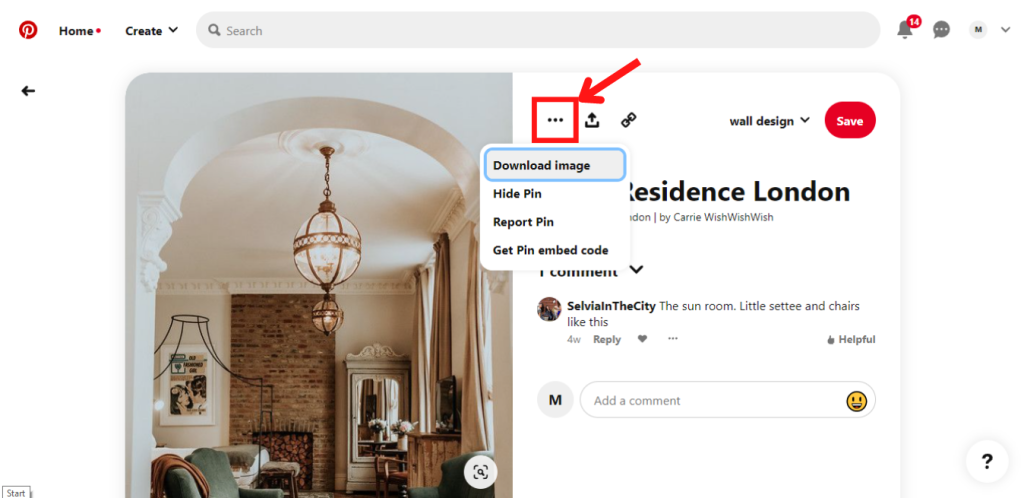
Created and Saved section on the Pinterest profile page - Click on the Pin to open it. Next, you will see options on the right side of the image. Click on the three dots icon. The first option will allow you to Download image. Your image will now be downloaded to your computer!
Three dots icon for Pin menu Another option is to right-click on the image you like and click on Save image as. This is the default method to save pictures from the web.
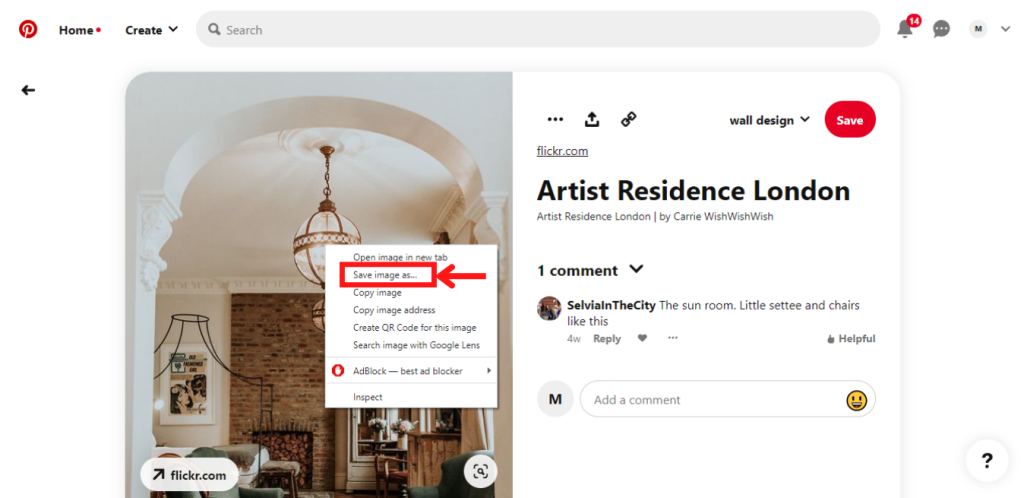
Right-click and choose Save image as.

I’m Susan, the founder of Learn Social Media. As a caregiver I regularly work with vulnerable groups, such as with the elderly in nursing homes, and children with disabilities in schools. During my work, I noticed these groups struggle to keep up with new technologies.
When it comes to social media, this often led to feelings of isolation and “being left out”. The thrill I experienced creating TikTok dance videos with children with disabilities, or helping elderly folks reconnect with old friends and loved ones on Facebook, is what inspired me to launch this project.
Read more about my project here: About Learn Social Media. Feel free to contact me at any time at [email protected], I spend my evenings responding to ALL messages!