
Tired of strangers stalking your profile? Want to keep your Facebook a place for only your friends and family? It’s time to make your Facebook profile private.
Here are the features that you can make private:
- Personal information including education, email, job, address, age, marital status, etc.
- Friend’s list
- Posts or future posts
- Who can send you a friend request
- Who can find you using your email or phone number.
Make your Facebook private on mobile
- Open the Facebook app and click on the three lines menu.

Go to the menu at the top right corner - Tap on the gear icon to launch Settings.
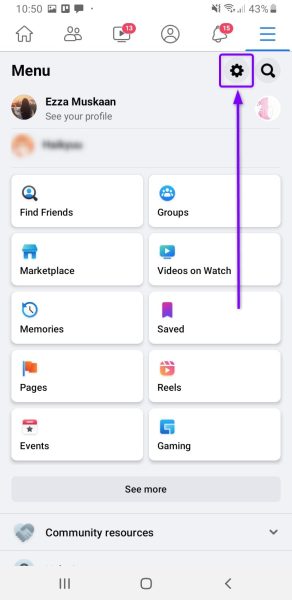
Go to Settings & privacy. - Now, scroll down to Audience Visibility and go to Profile locking.
Note: You can also search for it if you don’t find it here.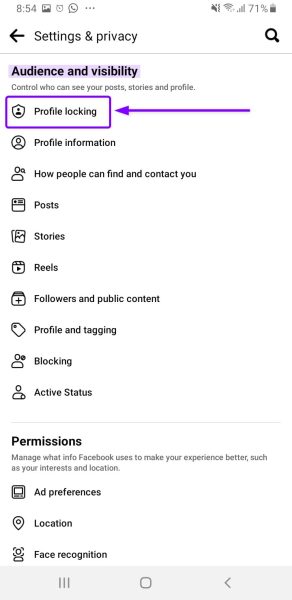
Tap on the Profile locking option - Here, tap the Lock your profile button to confirm.
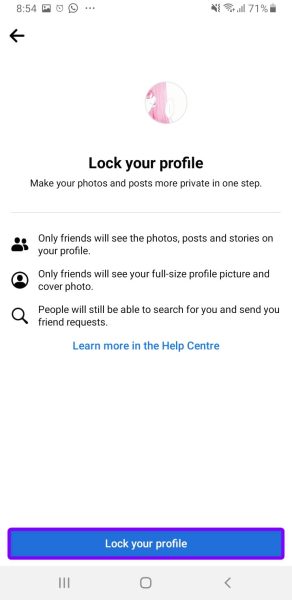
Tap on the Lock your profile button - Now, tap OK to continue.
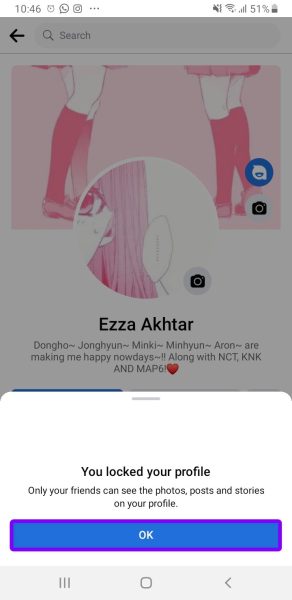
Tap on the OK button to continue - Now return to Settings & privacy (same steps as before), and go to How people can find and contact you.
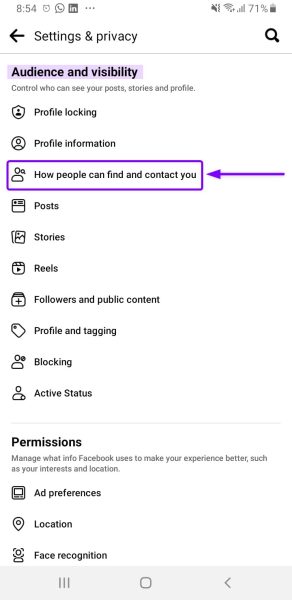
Go to How people find and contact you settings. - Open each setting and choose the privacy option you prefer (these include Everyone, Friends of friends, or Only me).
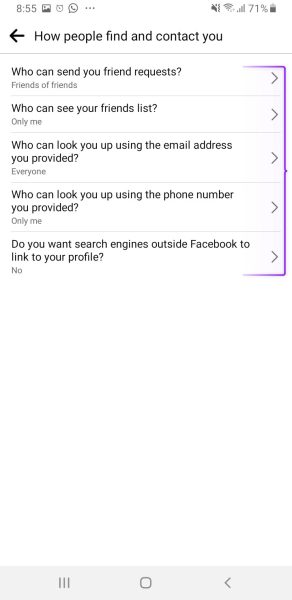
Edit each setting to make it private For example, in Who can send you friend requests?, you can select Friends of friends from the given options.
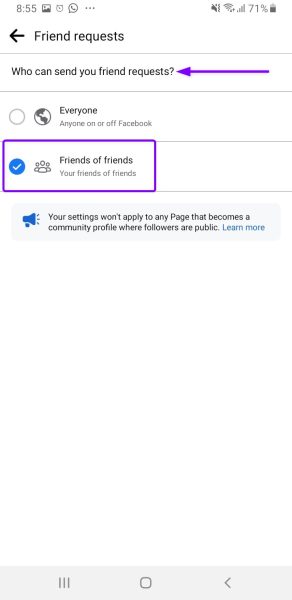
Choose Friends of friends from the options
Make your Facebook private on Computer
- Go to your Facebook account, and click on the top-right corner arrow to open the menu. Select Settings & privacy.
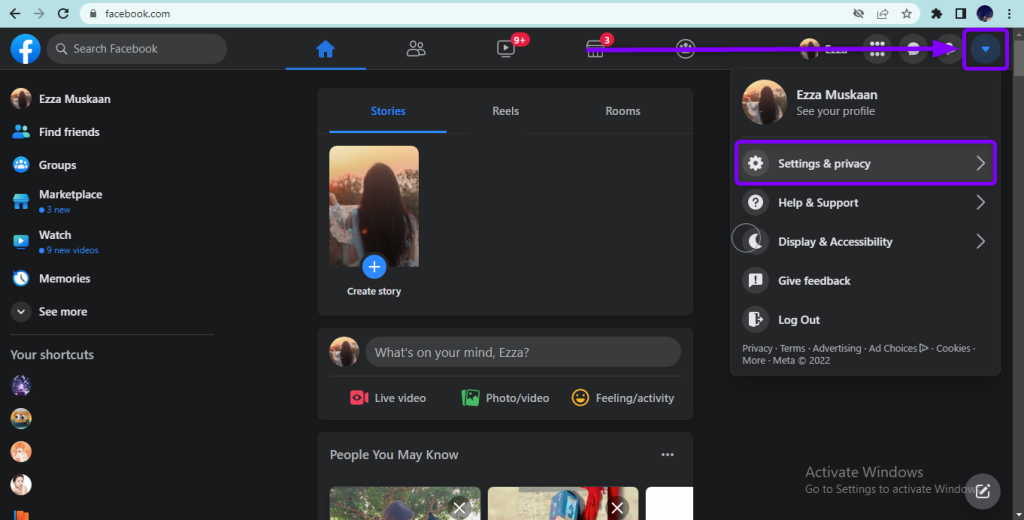
Click on Settings & privacy - Now, go to Settings.
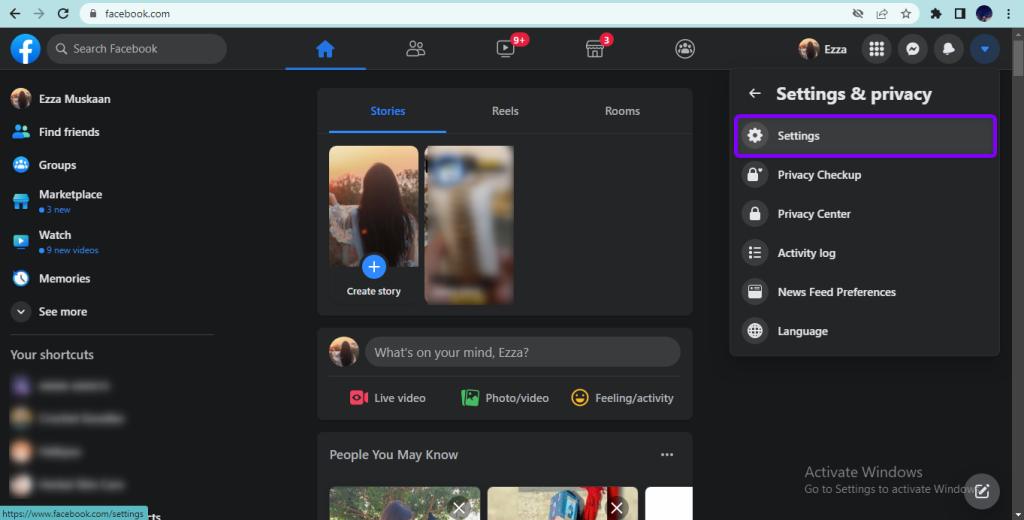
Go to Settings - In settings, select Privacy from the left panel.
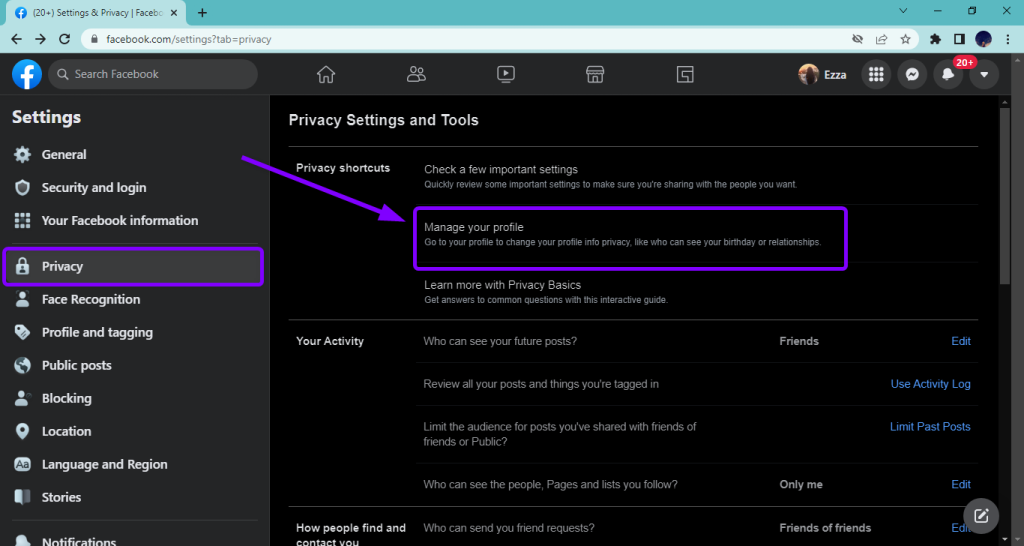
Click on the Manage your profile option. - Click on the three dots menu, then select Lock profile.
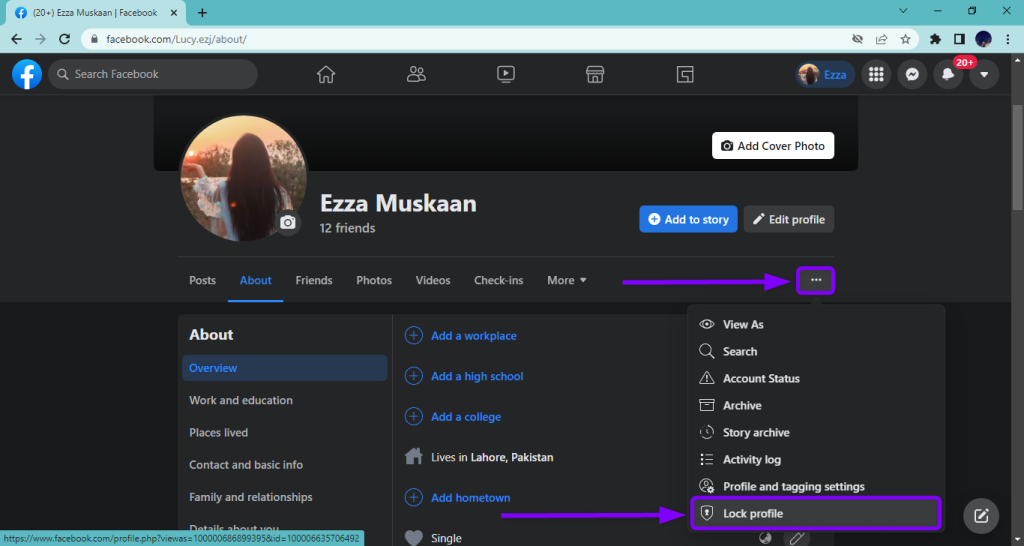
Click on the Lock profile option. - A confirmation prompt will pop up; click Lock Your Profile to confirm. Locking your profile will hide your personal information.
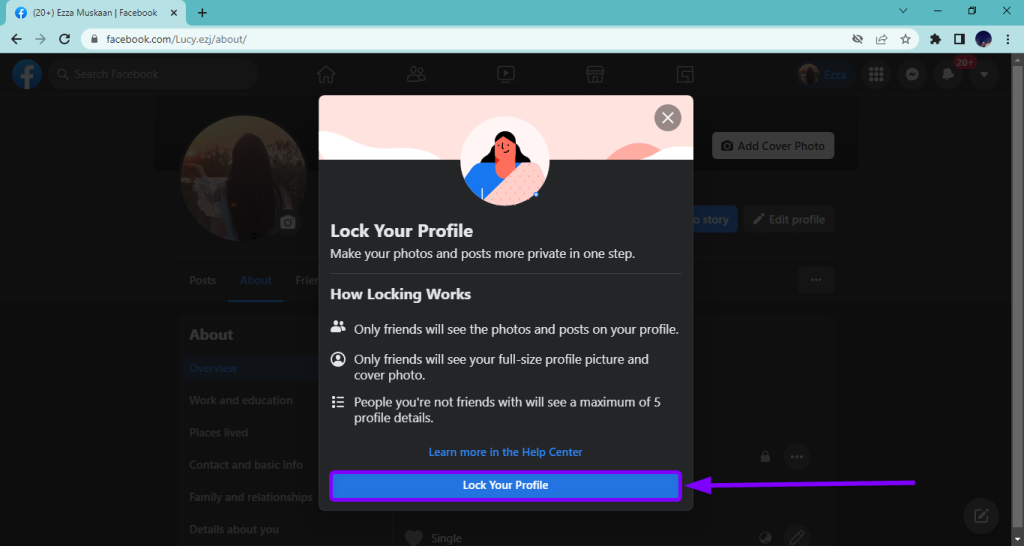
Click on the Lock Your Profile button to confirm - A notification indicating that your profile has been locked will appear. Click OK to continue.
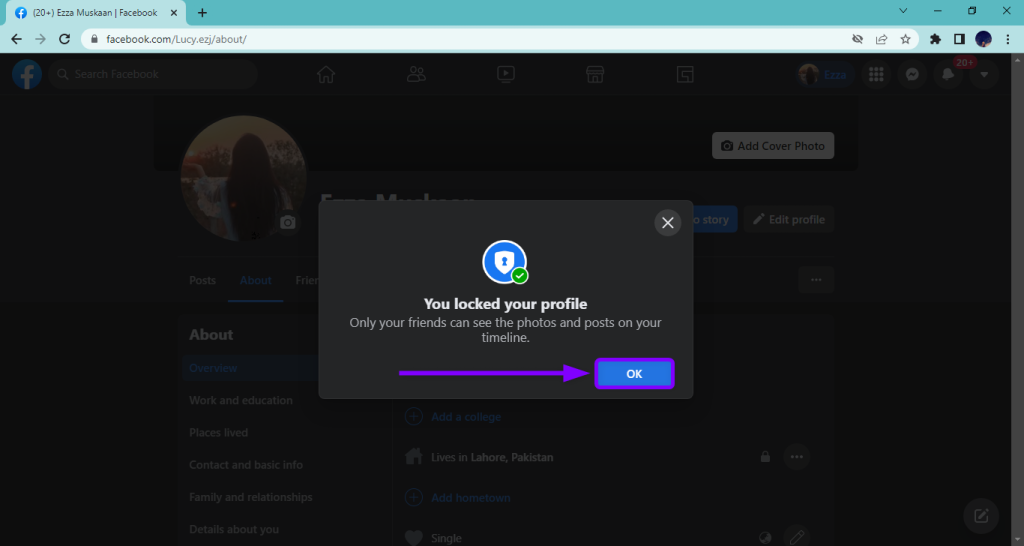
Click OK to continue. - For further privacy, go back to the Privacy settings and scroll down to Your Activity and How people find and contact you.
- Click Edit next to each setting and change it to either Only me or Friends of friends to make it as private as possible.
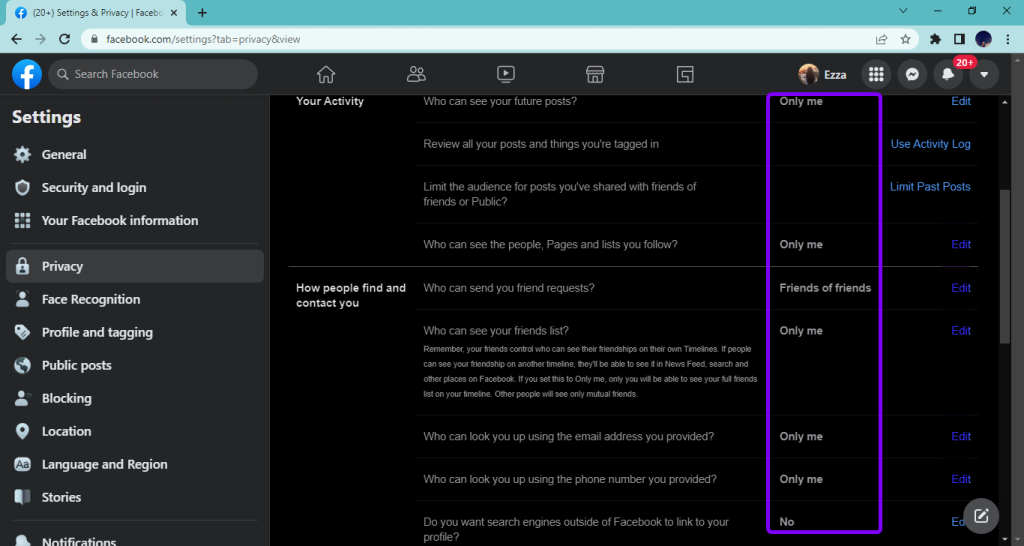
Change the settings under Your Activity and How people find and contact you.
I’m Susan, the founder of Learn Social Media. As a caregiver I regularly work with vulnerable groups, such as with the elderly in nursing homes, and children with disabilities in schools. During my work, I noticed these groups struggle to keep up with new technologies.
When it comes to social media, this often led to feelings of isolation and “being left out”. The thrill I experienced creating TikTok dance videos with children with disabilities, or helping elderly folks reconnect with old friends and loved ones on Facebook, is what inspired me to launch this project.
Read more about my project here: About Learn Social Media. Feel free to contact me at any time at [email protected], I spend my evenings responding to ALL messages!