
You should change your Pinterest password regularly for security reasons. You can also change (reset) if you forget your password.
Note: to change your password, you must have access to the email you used to sign up for your account.
Change your password on the Pinterest app
Change your password while logged out
- Open the Login screen in the Pinterest app and select Forgotten your password? at the bottom of the screen.
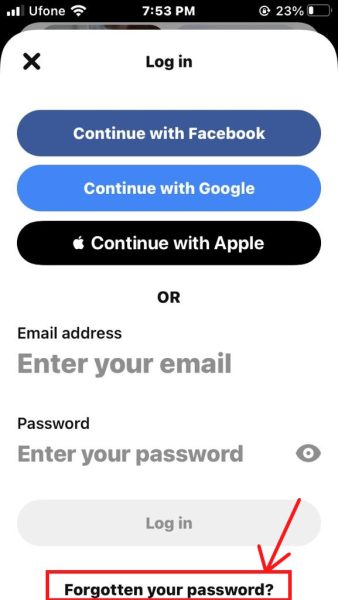
Tap on Forgotten your password? - You will be redirected to the Reset password page. Enter your email address and tap on Send a password reset email. Make sure you type the email address used to create the Pinterest account.
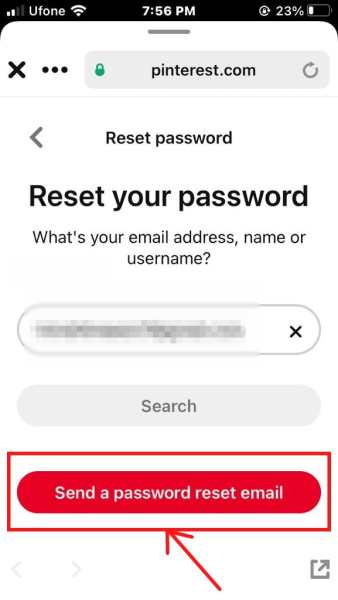
Send a password reset email. - Open the password reset email from Pinterest on your email app. Tap Reset Password.
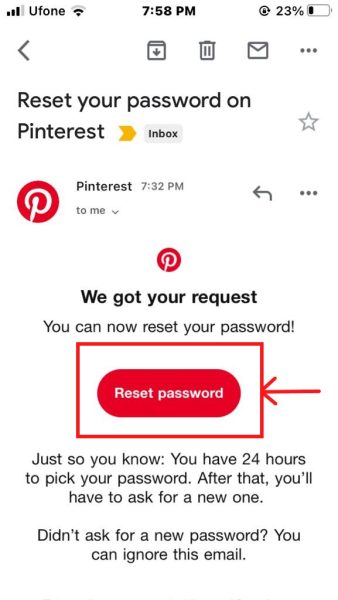
Reset password email by Pinterest. - Enter a new password and select Change password.
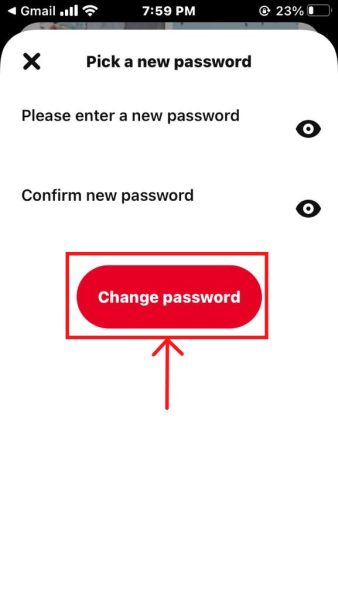
Change your password while logged in
- If you are logged in to your Pinterest account, tap on the Profile picture icon to change your password.
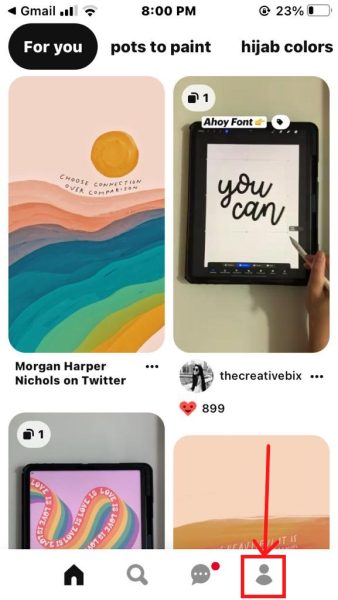
Select the Profile picture icon. - Tap the horizontal menu to open Settings.
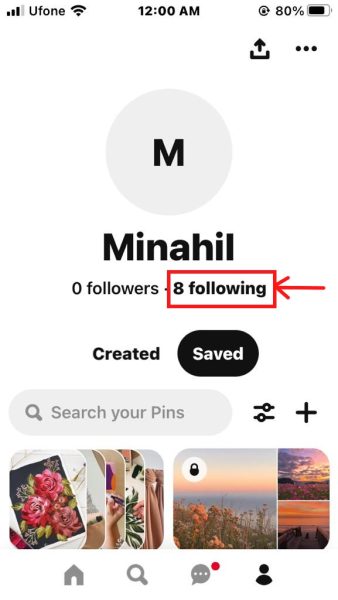
Tap the menu. - Under Account information, select Account management.
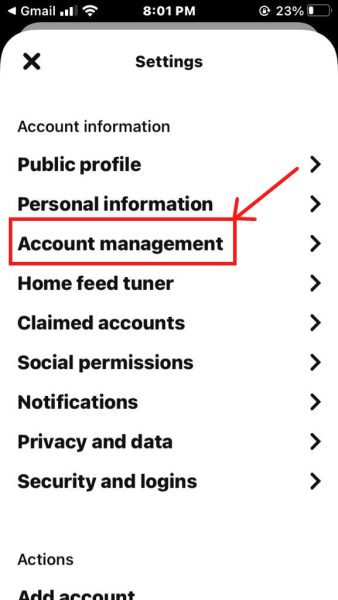
Select Account management. - Next to Password, tap on Change password.
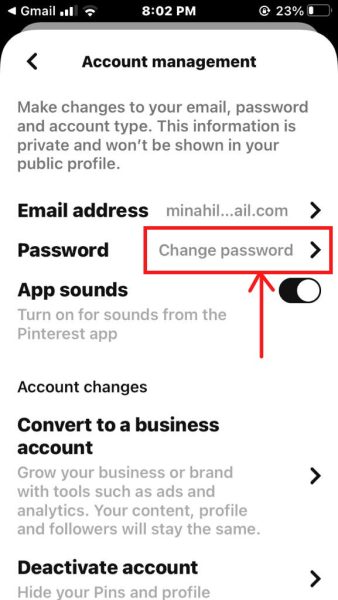
Select Change password. - Enter your current password and a new one. Finally, select Done.
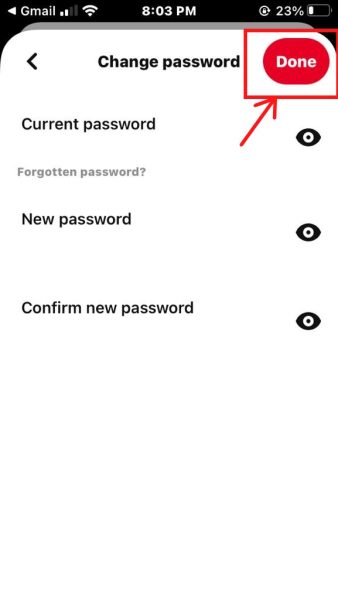
Enter current and new password, then select Done. - You will receive a Password updated pop-up message at the top of the screen.
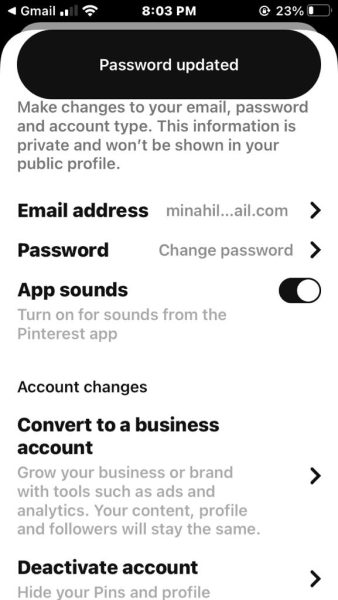
Password updated message.
Change your password on the Pinterest website
Change password while logged out
- Go to the login page on the Pinterest website. Then, click on Forgot your password? under the password field.
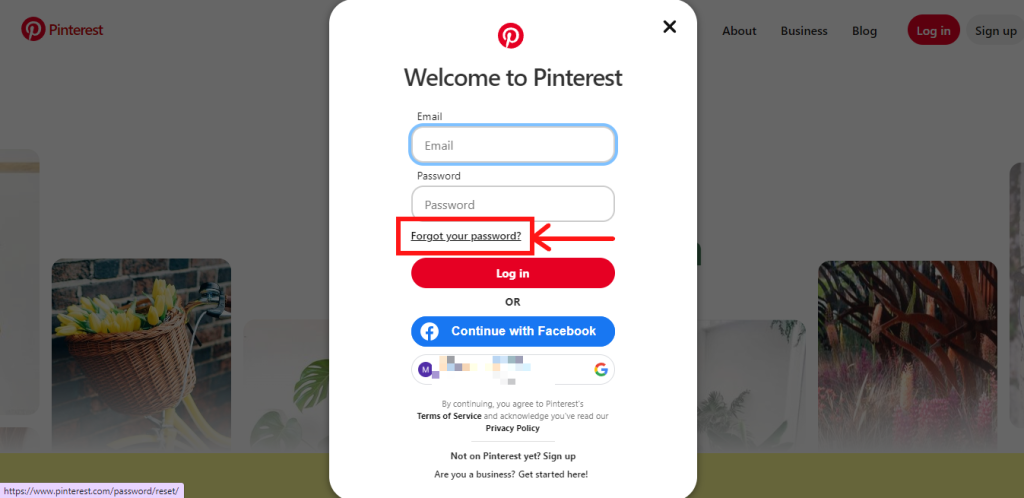
Select Forgot your password? - Enter your email address, then click Send a password reset email.
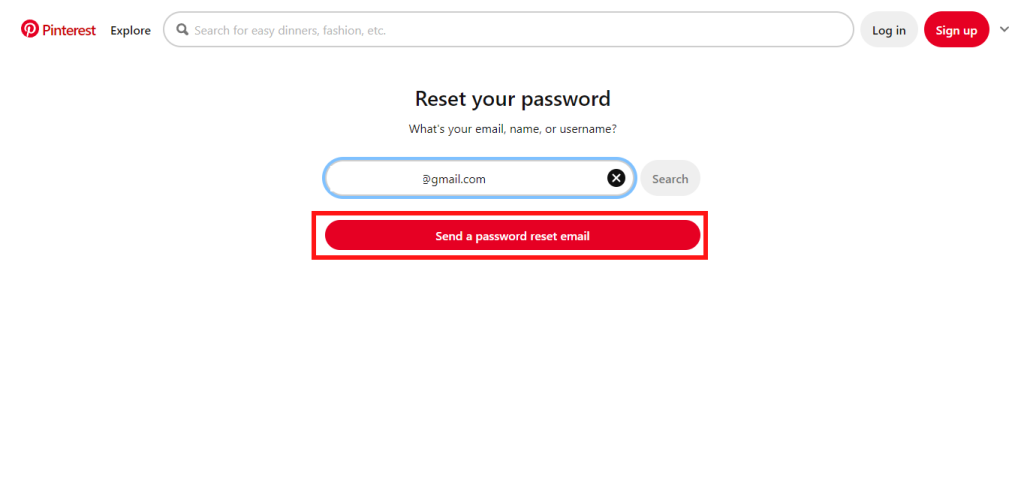
Enter the email address for your Pinterest account. - You will find an email for Pinterest password reset in your inbox. Click Reset password.
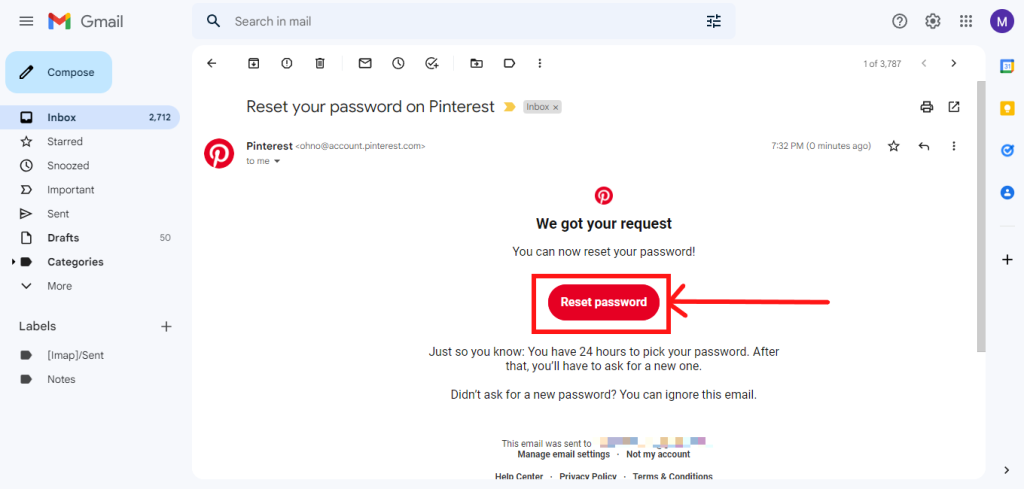
Click on Reset password. - Enter a new password and retype to confirm. Then, click on Change password.
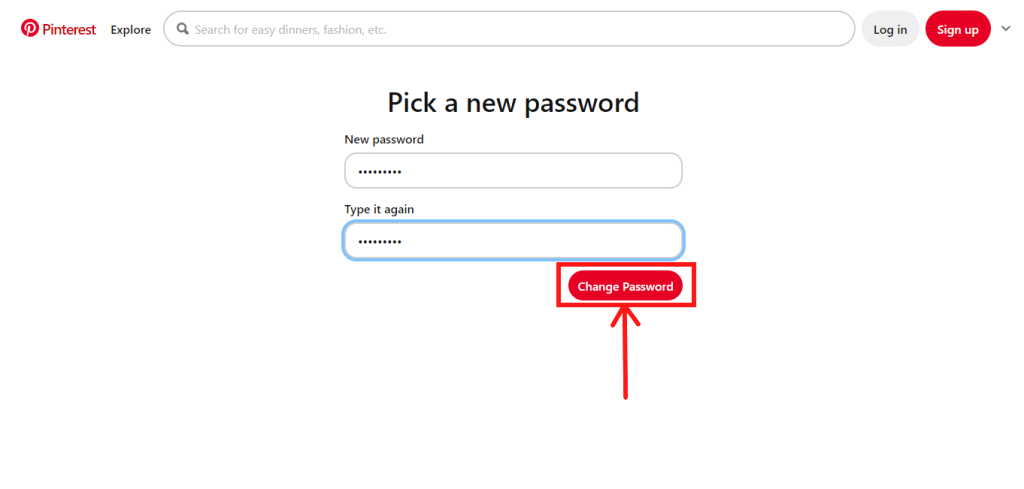
Enter new password, then select Change Password.
Change your password while logged in
- Click on the drop-down icon in the top right of the screen, then select Settings.
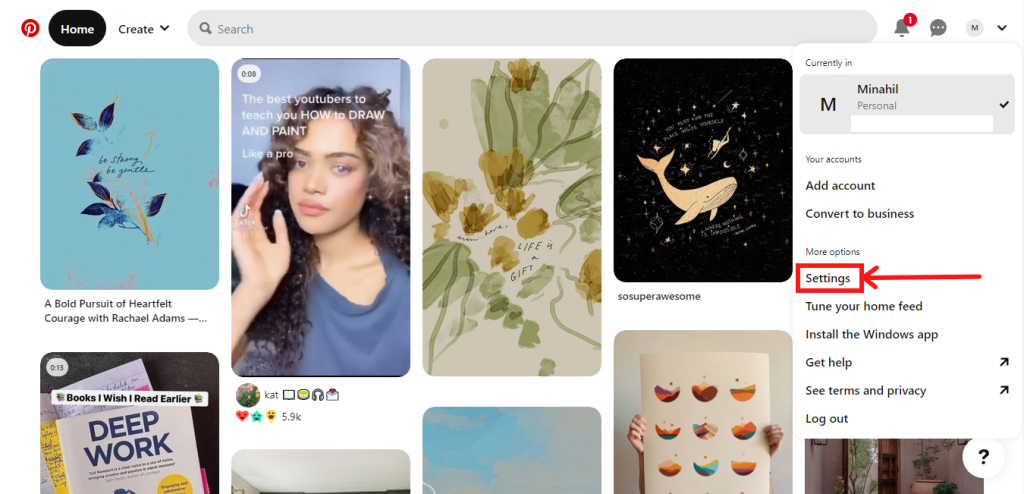
Select Settings from the menu. - Select Account Management and click Change next to the password tab.
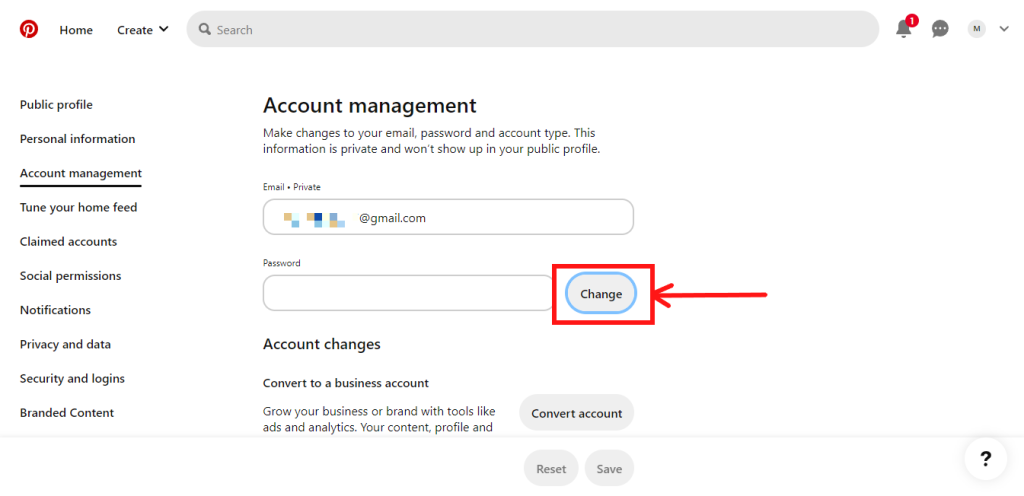
Click on Change. - Enter your old and new passwords and click Change Password.
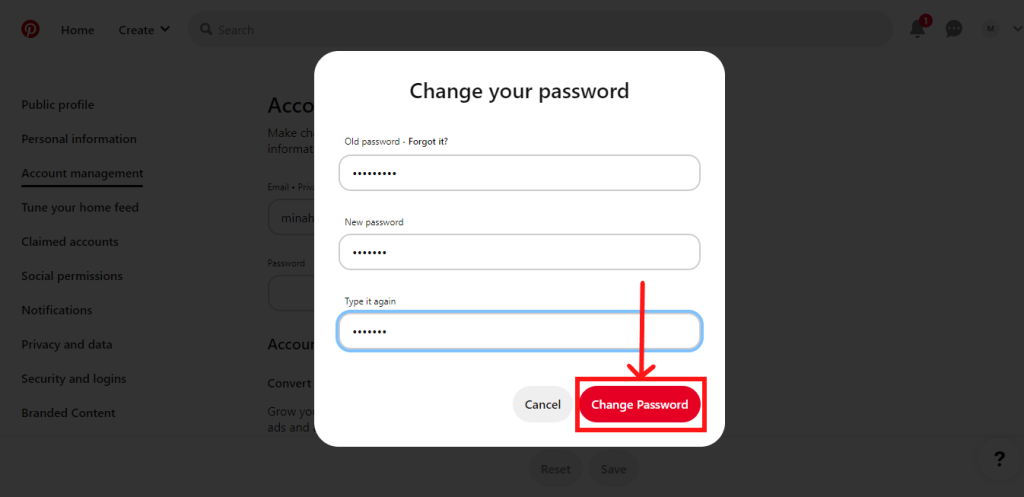
Change Password in Account management. - Your password is now successfully changed. Click Okay to confirm.
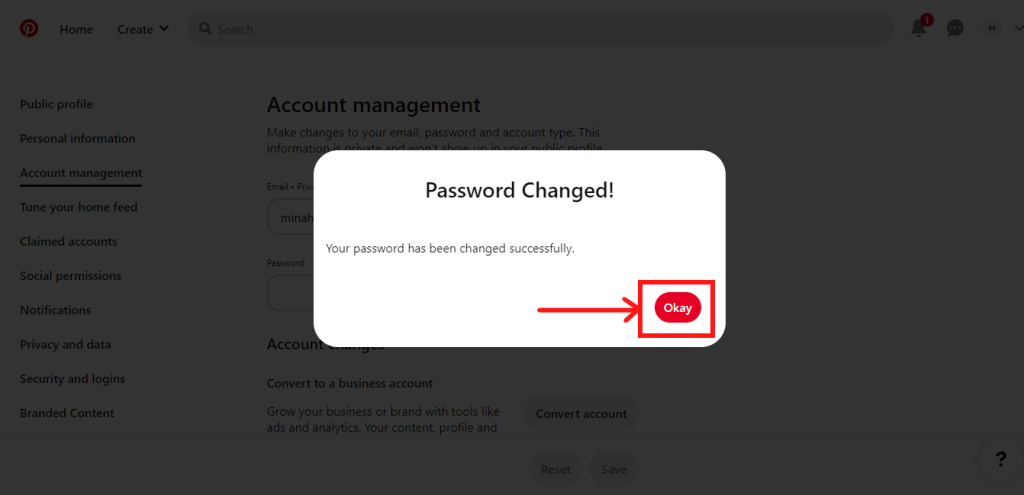
Click Okay to confirm.

I’m Susan, the founder of Learn Social Media. As a caregiver I regularly work with vulnerable groups, such as with the elderly in nursing homes, and children with disabilities in schools. During my work, I noticed these groups struggle to keep up with new technologies.
When it comes to social media, this often led to feelings of isolation and “being left out”. The thrill I experienced creating TikTok dance videos with children with disabilities, or helping elderly folks reconnect with old friends and loved ones on Facebook, is what inspired me to launch this project.
Read more about my project here: About Learn Social Media. Feel free to contact me at any time at [email protected], I spend my evenings responding to ALL messages!