
The Facebook Account Temporarily Unavailable notification may appear because of two reasons:
- Facebook is undergoing maintenance, or the servers are down.
- Cookies and cache on your browser need to be cleared.
You can’t do much if the error occurs due to server downtime. It might be a technical fault on the Facebook backend, or the website is under repair. Wait for some time and refresh your page every once in a while. You will be able to access your account in some time. Note: you can check metastatus.com to check if there are any current known Facebook login issues.
Your browser’s cache and cookie data can also be causing this error. In this case, clearing them can fix the error.
Clear Facebook app cache on your phone
Android
- Go to mobile settings, scroll down, and go to RAM & storage space.
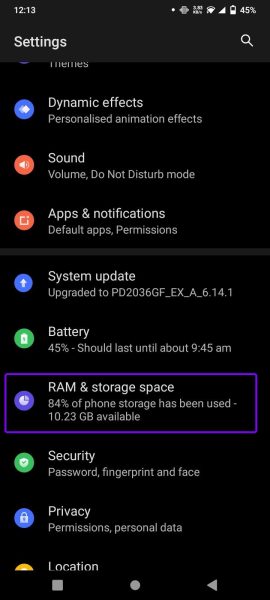
Go to RAM & storage space - Select Others apps from the list.
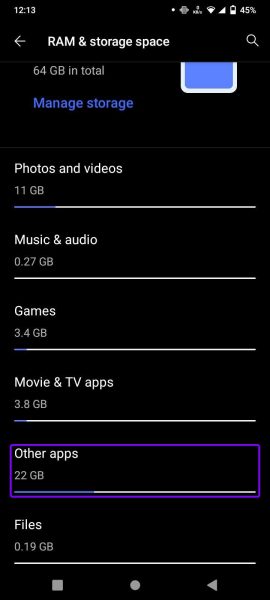
Tap on the Other apps - Go to the Facebook app.
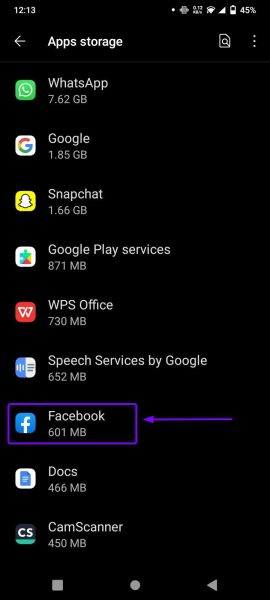
Tap on the Facebook app. - Tap on Clear cache to remove extra data.
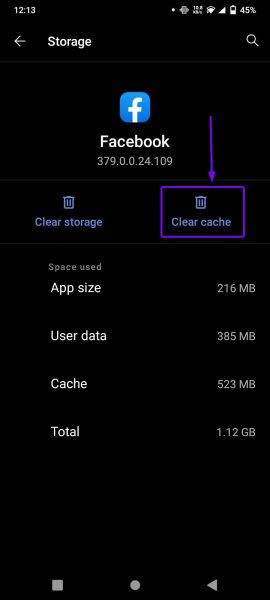
Tap on Clear cache. - Go to the Facebook app and try logging in to your account again.
iPhone
You can follow this guide to clear Facebook app cache on your iPhone: How to Clear Cache on iPhone.
Clear cookies/cache on Google Chrome
- Open your Chrome browser by clicking on the Chrome icon.
- Click on three vertical dots located in the top-right corner.
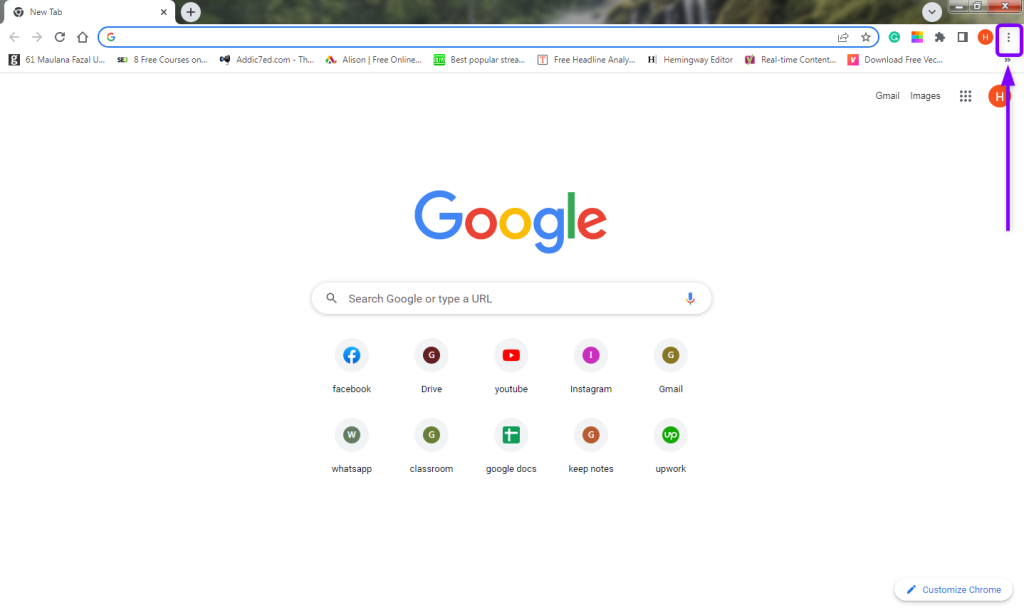
Click on the menu. - Click on the More tools option from the menu to open a sub-menu.
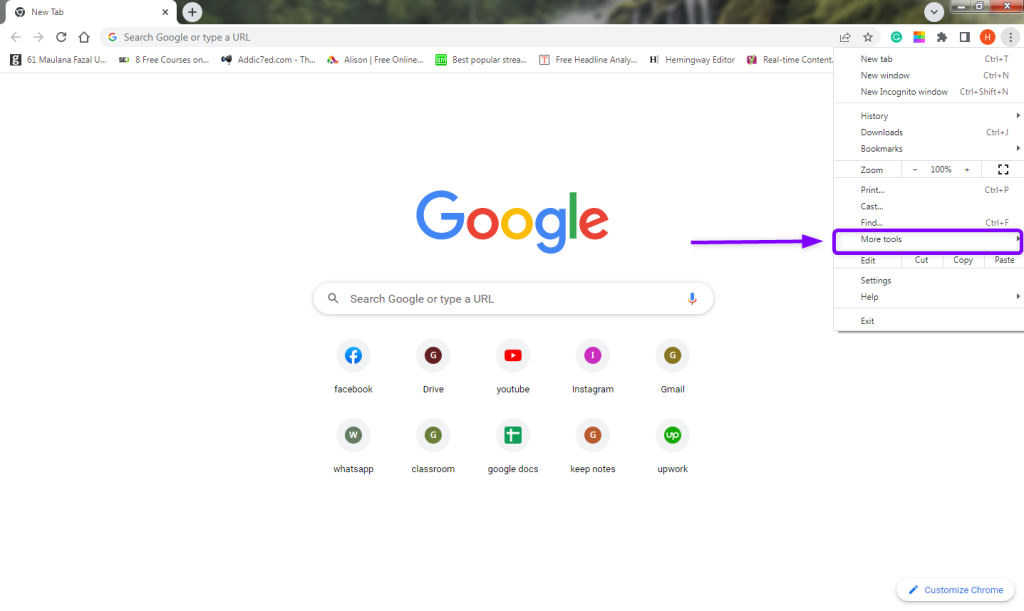
Click on More tools. - From the sub-menu, click on the Clear browsing data option.
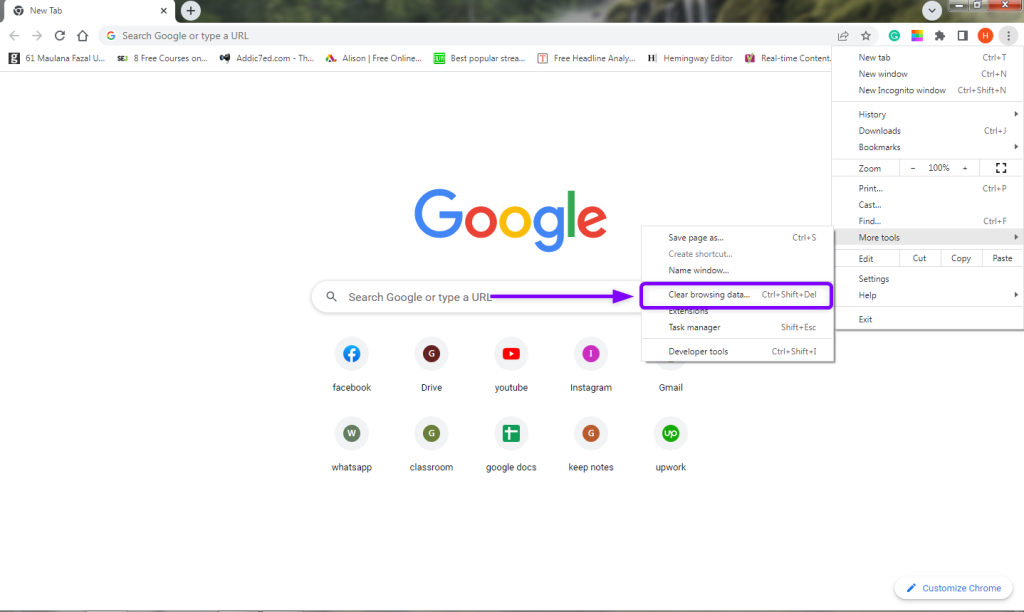
Select Clear browsing data. - In the pop-up window, check the boxes Cookies and other site data and Cached images and files.
- Now, click on Clear data.

Click on Clear data. - That’s it! Refresh your browser to log in to your Facebook account again.
Clear cookies and cache on Firefox
- Open Mozilla Firefox and click on the three horizontal lines (menu button) in the top-right corner.
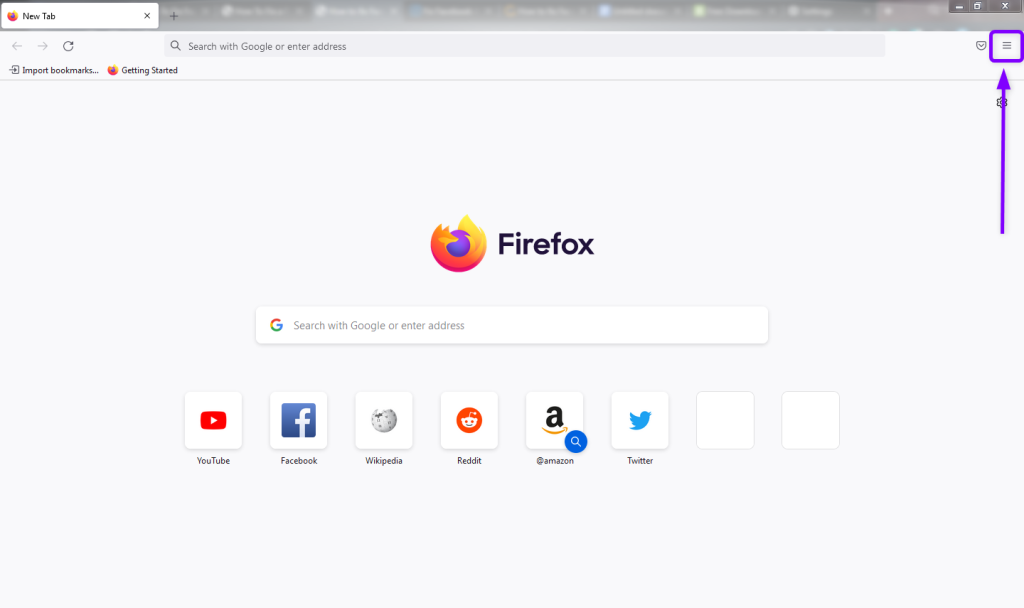
Go to the menu. - From the drop-down list, click Settings.

Click on Settings. - From the left-side, select Privacy & Security.
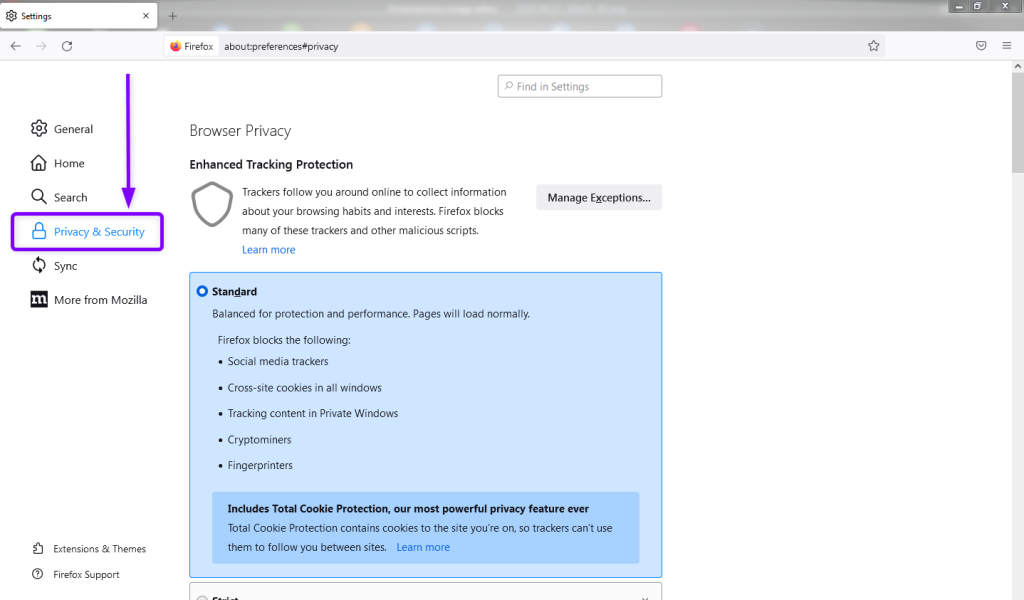
Go to Privacy & Security. - Go to the Cookies and Site Data section.
- Now, check the box stating Delete cookies and site data when Firefox is closed.
- Click on the Clear Data button.
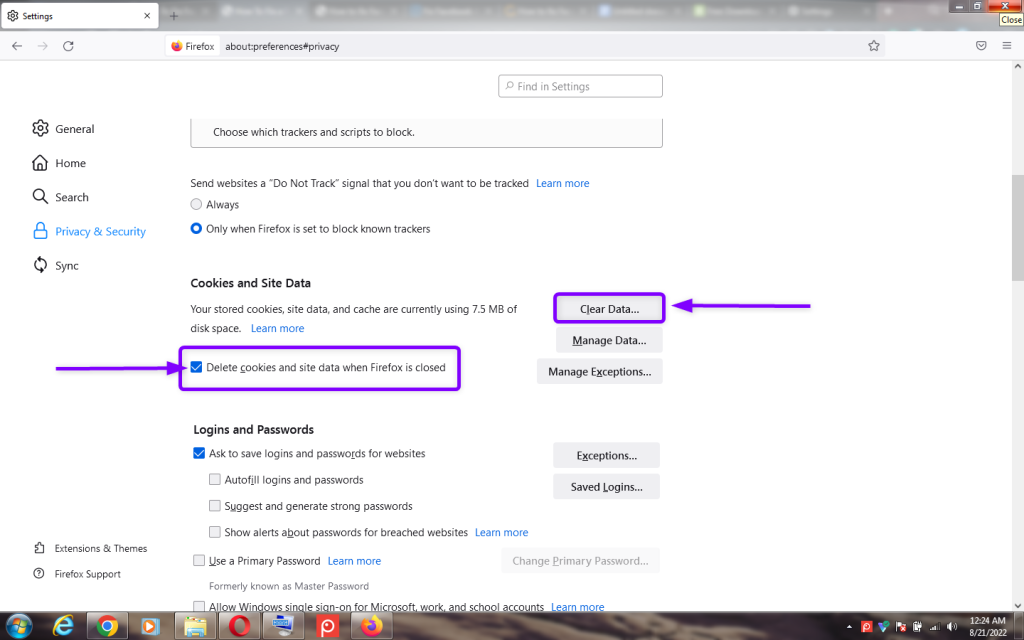
Click on Clear Data.

I’m Susan, the founder of Learn Social Media. As a caregiver I regularly work with vulnerable groups, such as with the elderly in nursing homes, and children with disabilities in schools. During my work, I noticed these groups struggle to keep up with new technologies.
When it comes to social media, this often led to feelings of isolation and “being left out”. The thrill I experienced creating TikTok dance videos with children with disabilities, or helping elderly folks reconnect with old friends and loved ones on Facebook, is what inspired me to launch this project.
Read more about my project here: About Learn Social Media. Feel free to contact me at any time at [email protected], I spend my evenings responding to ALL messages!