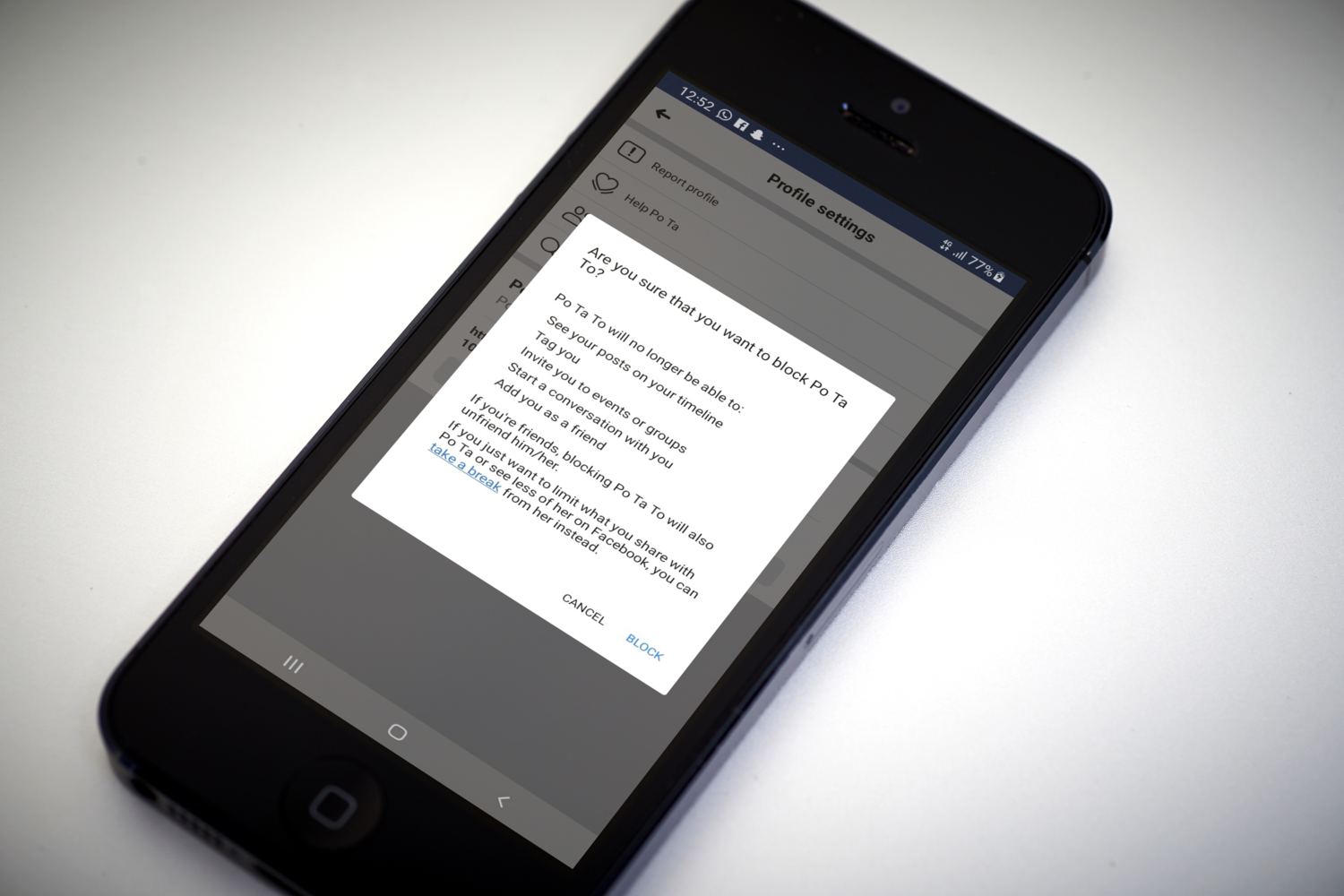
Blocking someone on Facebook will automatically unfriend them, and they will no longer see your profile or contact you. Also, they will not be able to tag you in any posts, comments, or photos, invite you to any events or groups, chat with you, or add you as a friend. They also will not be able to find you in a search.
If you’re looking to Block an annoying Facebook friend or perhaps an ex, this guide shows you how to do this on both a computer and phone.
Blocking someone on Facebook using a PC/Mac
You can block people on a PC or Mac easily by using one of the following methods.
Blocking From User’s Profile
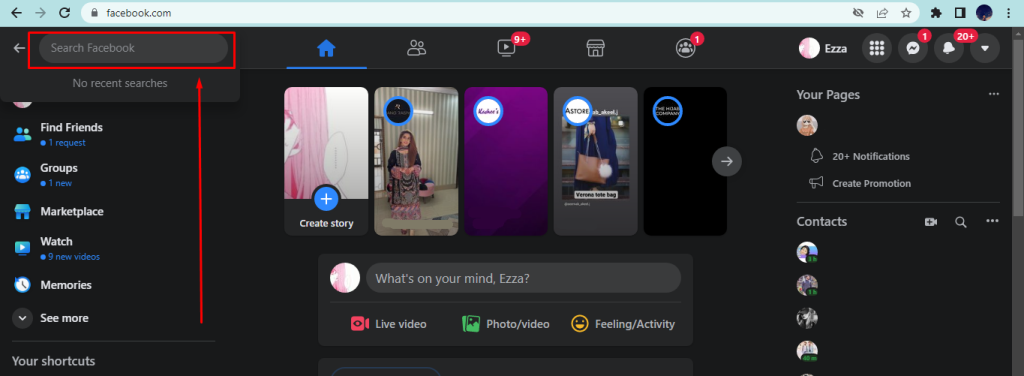
- Search for the person you want to block from the Facebook search bar, as shown in the picture below.
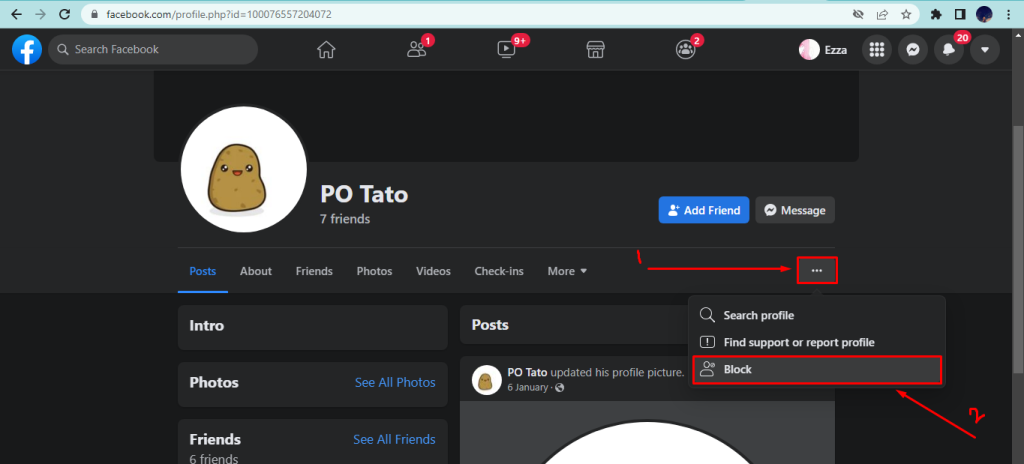
Search for the person you want to block - Go to their profile and click the three dots menu on the right side. Select Block from the drop-down menu.
Click the three dots and select block. - Select Confirm from the prompt, and you will be all done!
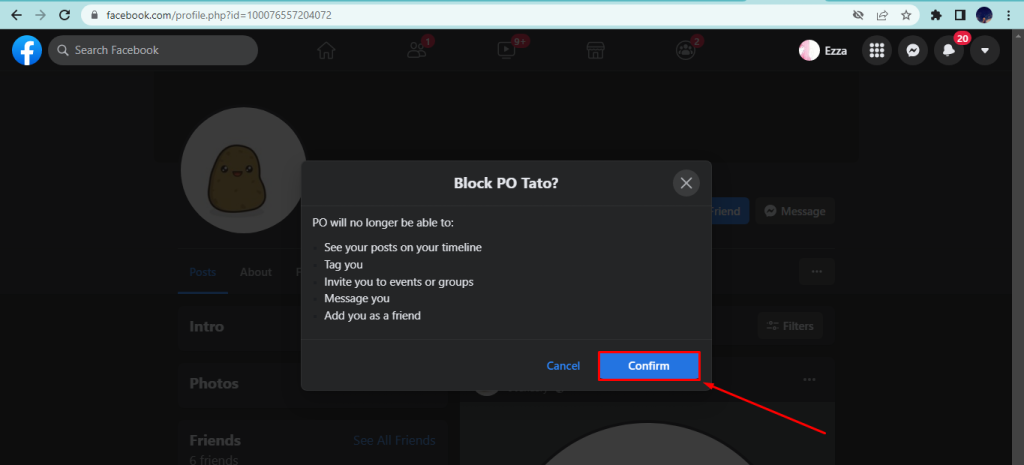
Click confirm
Blocking From Settings & Privacy
- Go to Facebook and log in.
- Now, click on the arrow icon on the top right corner to open the menu.
- From the drop-down list, click Settings & privacy.
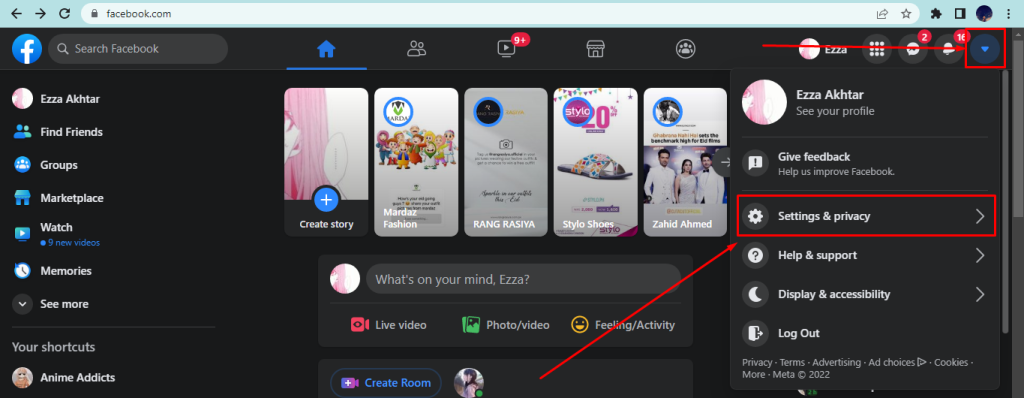
Go to the Facebook menu in the top right corner and then Settings & privacy. - Here, go to Settings.
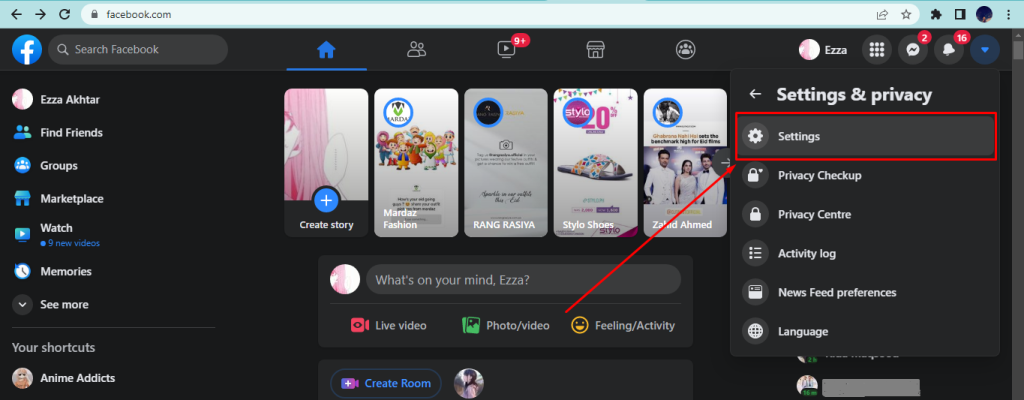
Go to settings - Now, select Blocking from the left side. In the Block Users section, type in the name of the person you want to block and select Block.
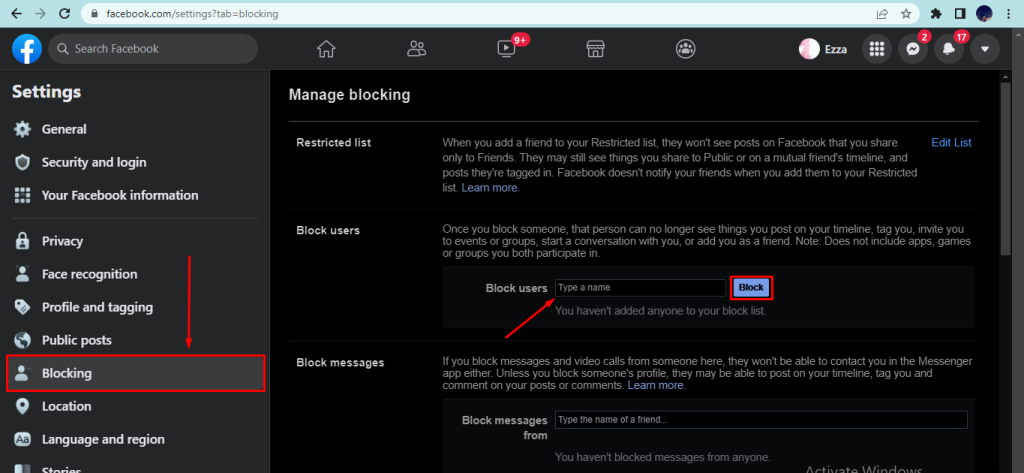
Go to the Blocking settings. - Once you click block, you will see a new dialogue box named Block people. Select the person you want to block and click the small block button next.
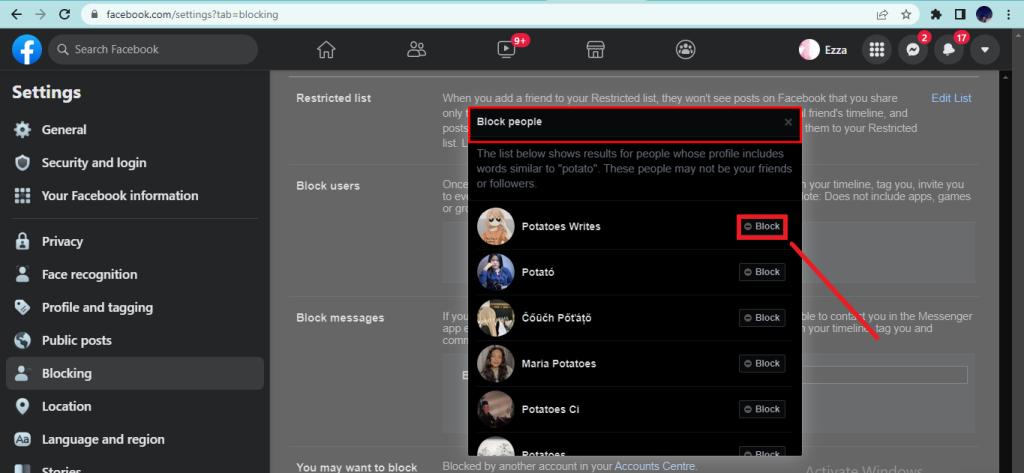
Select the person you want to block - A prompt will ask you if you want to block the person.
- Select Block (person’s name) option, and that’s it!
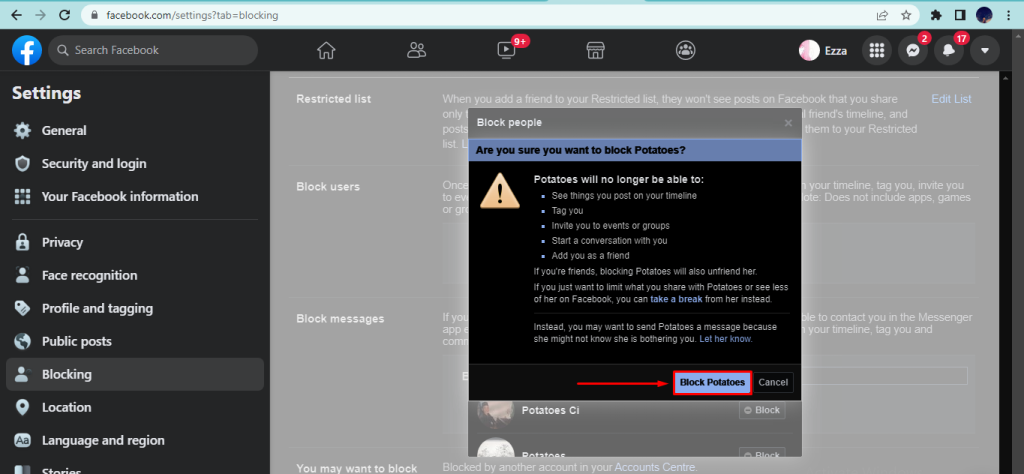
Blocking only messages and calls
If you don’t want to block someone but want to stop receiving messages and calls from them, there is a way to do this. You will be able to see each other’s profiles and activity but won’t be able to send and receive messages.
- Sign in to your Facebook account and click on the arrow icon on the top right corner to open the menu.
- From the drop-down list, click Settings & privacy.
Go to the Facebook menu in the top right corner and then Settings & privacy. - Here, go to Settings.
Go to Settings - Now, scroll down to Block Messages and type the person’s name you don’t want to receive messages from.
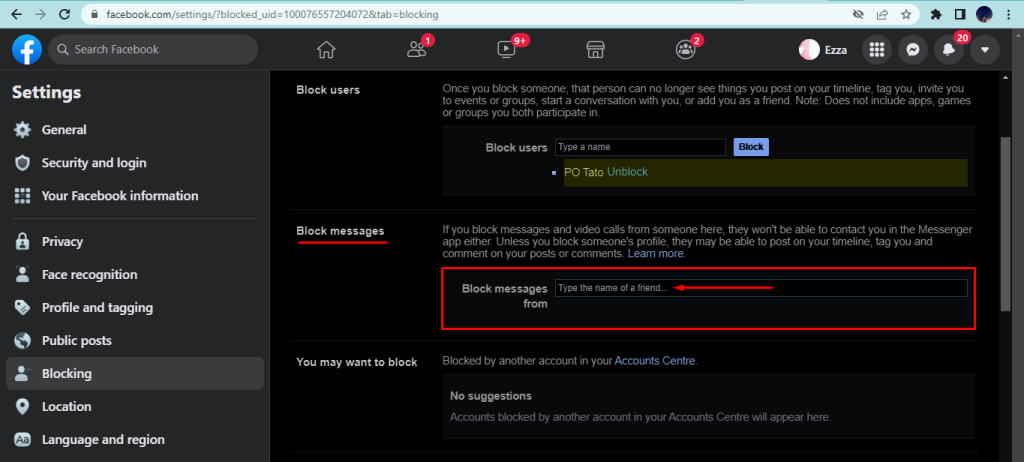
Type the name of people you want to block messages from - Once you select the person, there will be two options. Select Block messages and calls from these options.
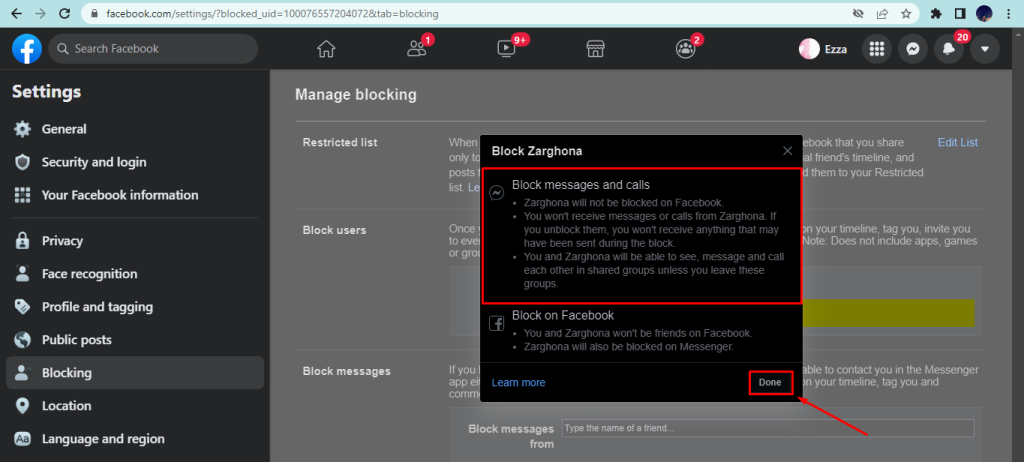
Select Block messages and calls - There will be a confirmation prompt—select Block.
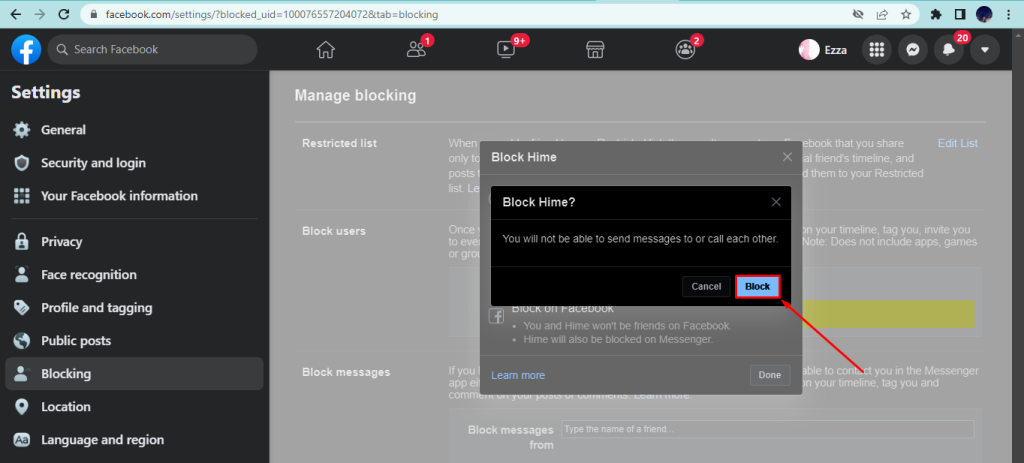
Click Block to confirm - Now, click Done.
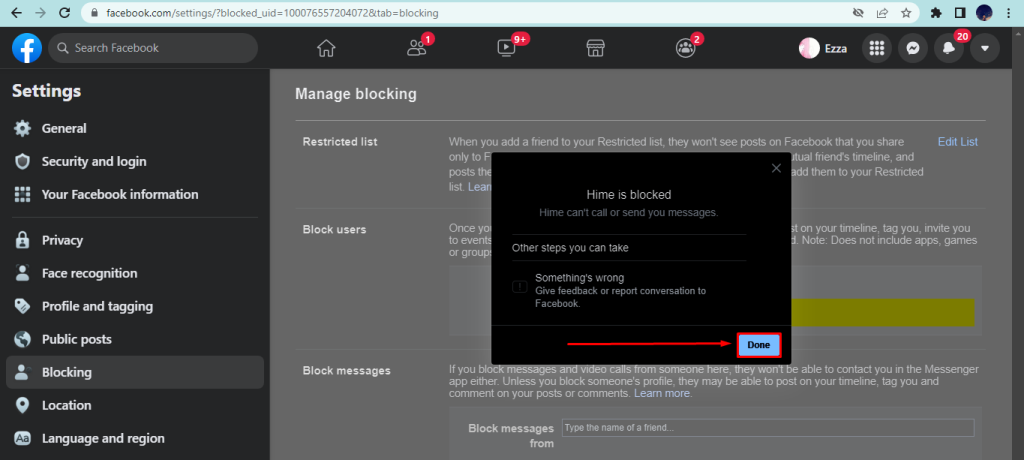
Click Done
Blocking someone on Facebook using iPhone or Android
If you want to block a Facebook contact on your mobile phone, there are a few different ways you can do it.
Blocking from the user’s profile page
- Open the Facebook app on your phone and go to the profile of the person you want to block.
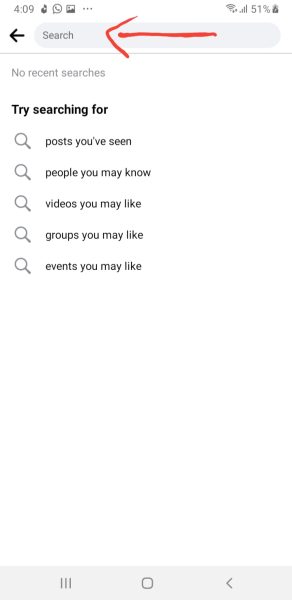
Type the person’s name you want to block - Now, tap the three dots on the right under their profile picture.
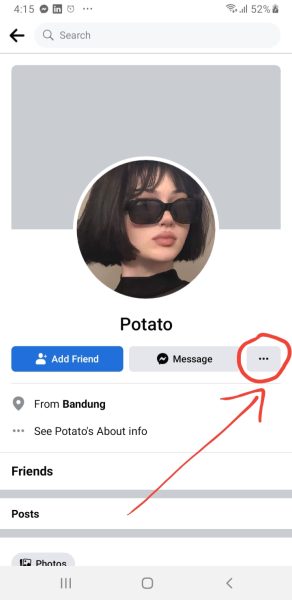
Tap the three dots for more options - Select Block.

Click Block in profile settings. - Now, in the confirmation prompt, tap Block again to finalize it.

Select block
Blocking From Settings & Privacy
- Tap the menu icon in the top right corner of the screen (three horizontal lines).
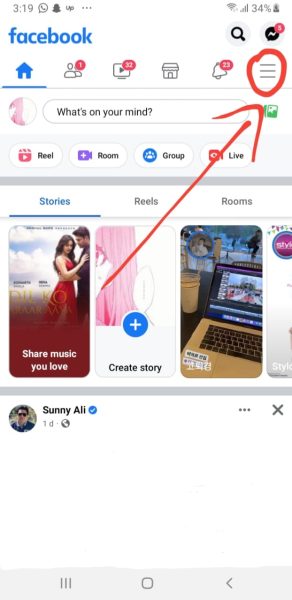
Go to the menu in the top right corner. - Click the Gear icon in the top right corner to go to Settings & privacy.
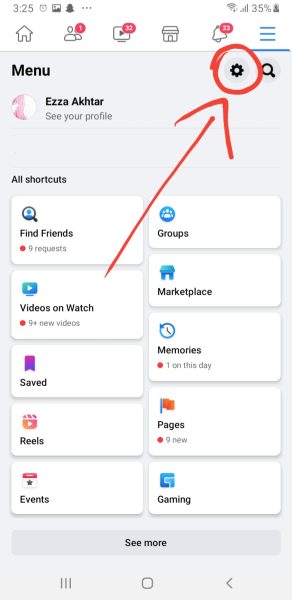
Click the gear icon in the top right corner to go to the Setting & privacy - Scroll down to Audience and visibility and go to Blocking.
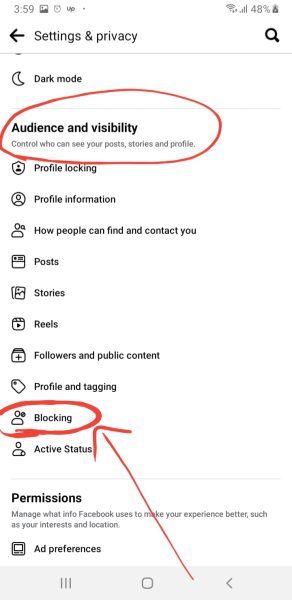
Go to Blocking settings. - Now, click Add To Block List.
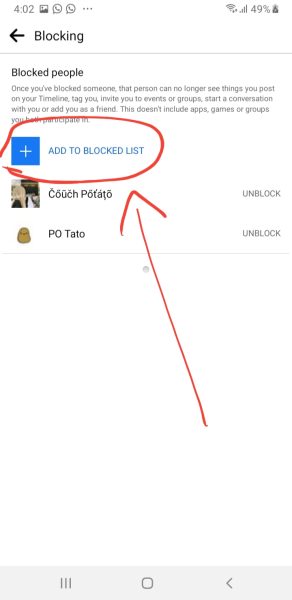
Open the ADD TO BLOCK LIST option. - Type in the name of the person you want to block. From the list of people, click Block next to the one you want.
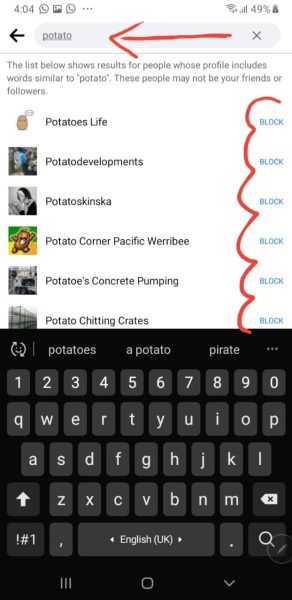
Select the person you want to block from the list - Read the confirmation prompt and tap Block.
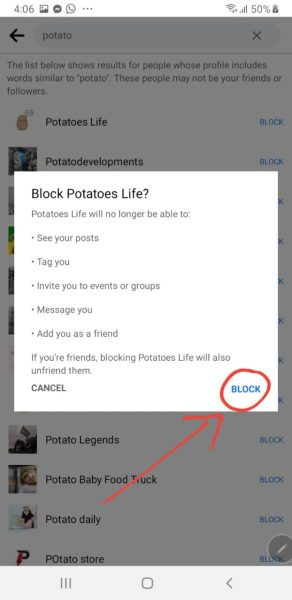
Select Block to confirm Note: If you block someone on Facebook and then unblock them, you will need to wait 48 hours to block them again.
I’m Susan, the founder of Learn Social Media. As a caregiver I regularly work with vulnerable groups, such as with the elderly in nursing homes, and children with disabilities in schools. During my work, I noticed these groups struggle to keep up with new technologies.
When it comes to social media, this often led to feelings of isolation and “being left out”. The thrill I experienced creating TikTok dance videos with children with disabilities, or helping elderly folks reconnect with old friends and loved ones on Facebook, is what inspired me to launch this project.
Read more about my project here: About Learn Social Media. Feel free to contact me at any time at [email protected], I spend my evenings responding to ALL messages!