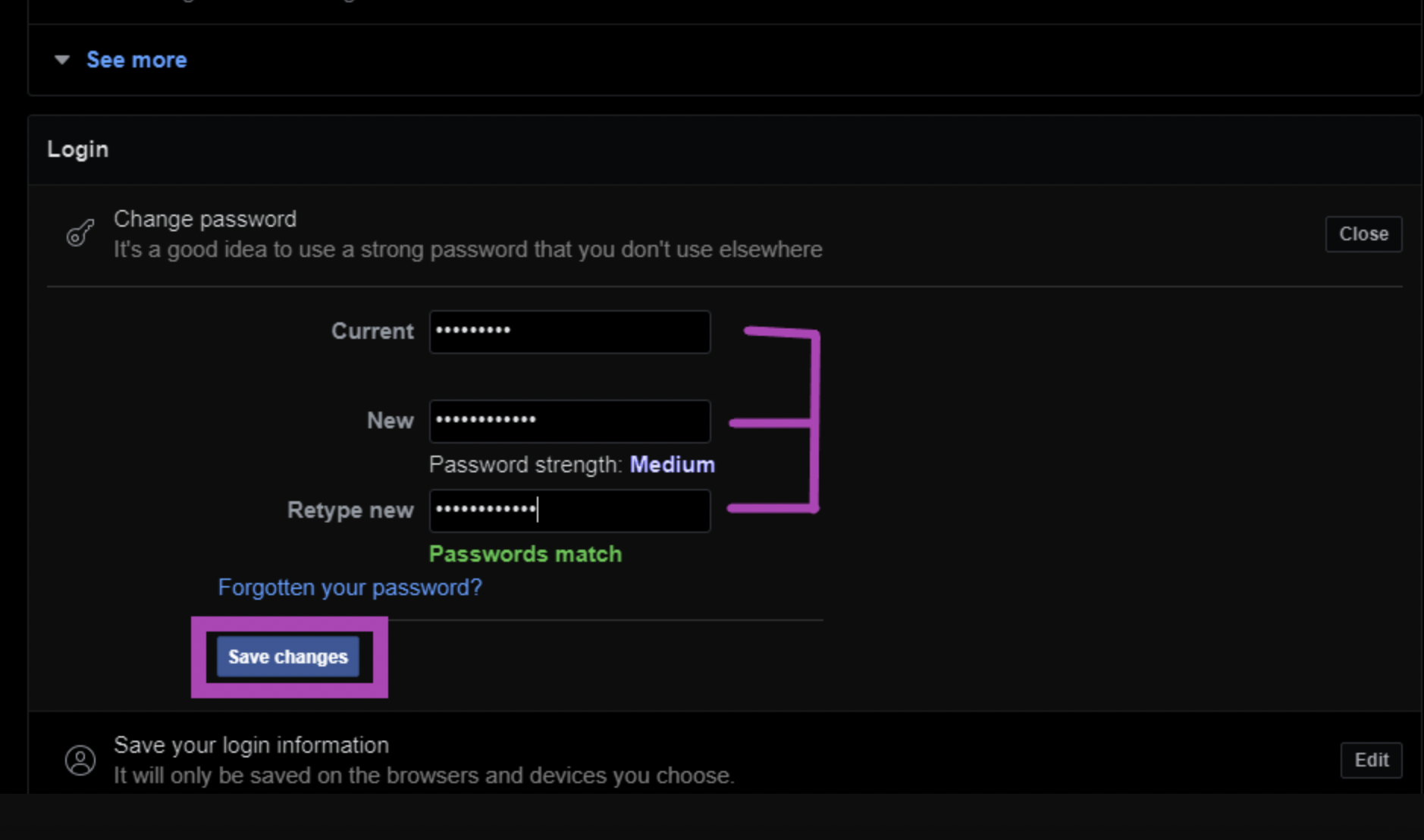
If you forgot your account logged in to someone’s phone or suspect that someone else knows your password, you should change it to keep your account secure. This guide shows you how to change your Facebook password on your computer or phone quickly.
Change Your Facebook Password on a Computer
If you’re using Facebook on a browser on your computer, you can follow these steps to change your password easily.
Note: you can use any browser – the steps will remain the same.
- Log in to your Facebook account from facebook.com
- Click on the downwards arrow profile icon in the top-right corner
- From the drop-down list, select Settings & Privacy.
- From the following menu, select Settings.
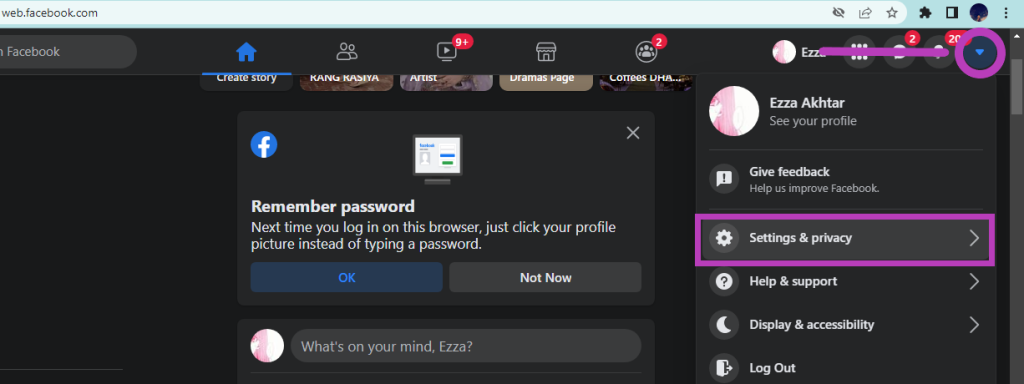
Go to the menu in the top right corner, and from the drop-down list, click Settings & Privacy. - Next, select Security and Login – it will be the second option on the left panel.
- Scroll down to the Login category and select Edit next to the Change Password option.
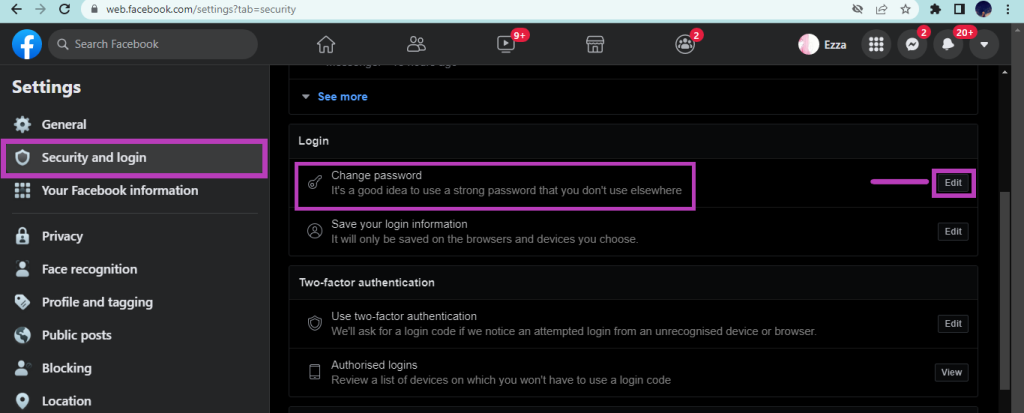
Select ‘Security and Login’ then ‘Edit’ your password - You will see three boxes requiring your current password and the new password you want to set in the next window. Enter your Current password in the first box, your new password in the second box, and retype the new password in the third box to confirm it. Once you get a Passwords match notification, select Save changes. Your new password will now be set.
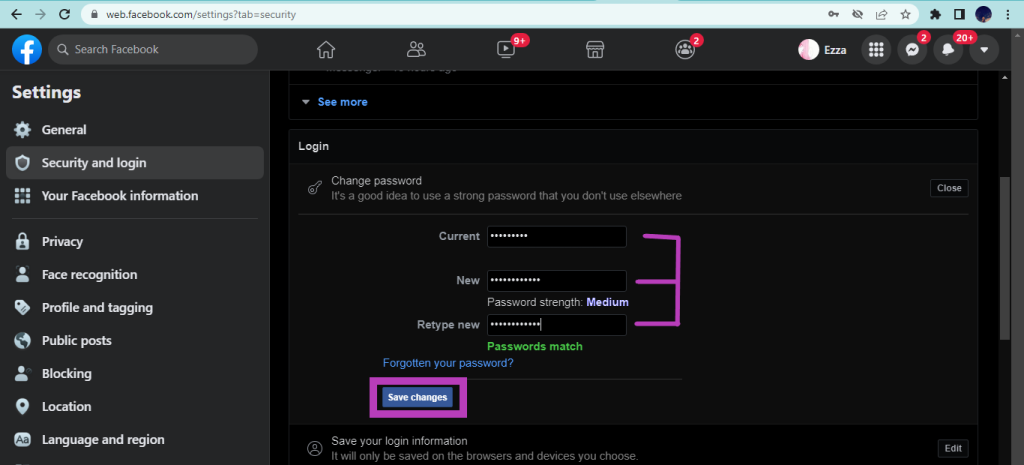
Type your old password in the first box and your new password in the second, and retype it in the third. - After saving the new password, you will receive a new prompt will appear with two options:
i. Review other devices – this will show you the devices currently logged into your Facebook account. You can select Log out from all sessions if you want your Facebook account to be logged out of those devices.
ii. Stay logged in – This option doesn’t check where else you’re logged into your account
Select Continue when you’re finished.
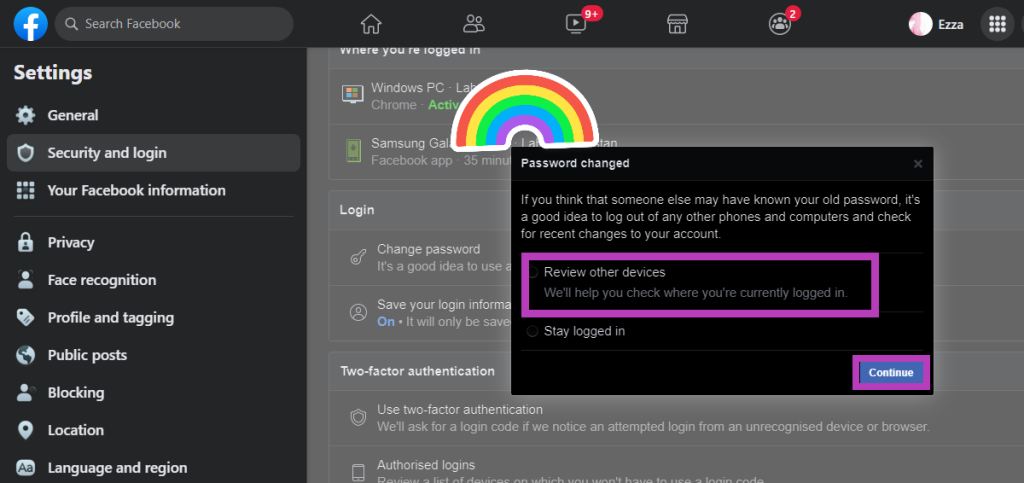
Select Review other devices from the prompt
Change Your Facebook Password on a Phone
Follow these steps to change your Facebook password using the Facebook mobile app. This works for any device using the app, including iPhone, Android, and tablets.
- Open the Facebook app on your phone and go to the homepage.
- Go to the three lines menu at the top right corner of the page below the messenger icon.
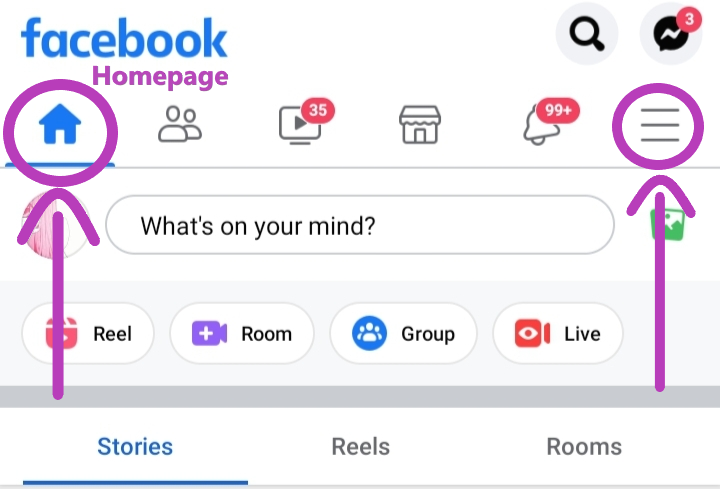
Go to the Facebook homepage and then three lines menu - Once you open the menu, tap the small gear icon on the top right. Then, go to Settings & Privacy.
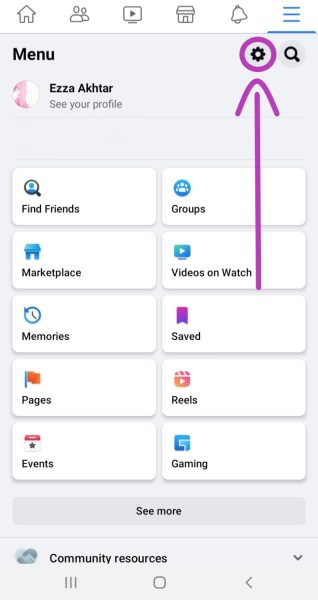
Go to the settings by clicking the icon. - In “Settings & Privacy” go to Password and security.
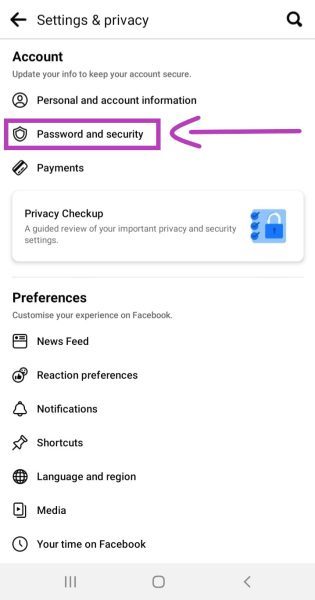
Go to Password and security in the settings. - Go to the “Login” section in this window and select Change Password to set a new password.
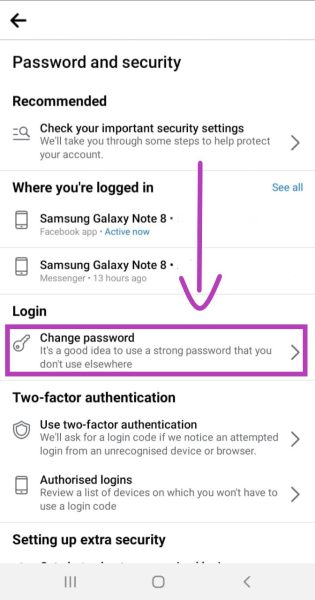
In the login settings, select ‘Change Password.’ - You will see three boxes requiring your old and new passwords, and retype the new password.
- Fill these boxes with appropriate information and select Update Password.
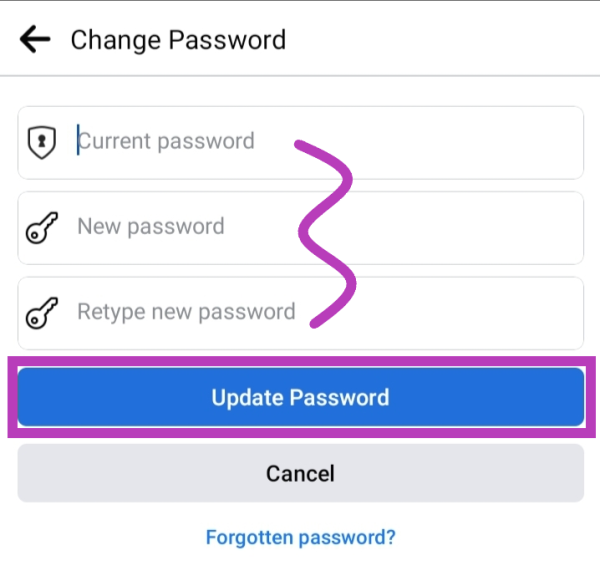
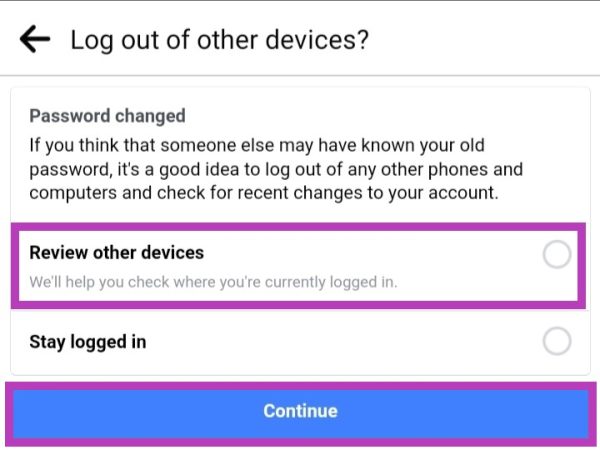
Fill in the required information in the boxes. - After you have changed your password, Facebook will give you two options before continuing.
i. Review other devices – this will show you the devices currently logged into your Facebook account. You can select Log out from all sessions if you want your Facebook account to be logged out of those devices.
ii. Stay logged in – This option doesn’t check where else you’re logged into your account
Select Continue when you’re finished. - You can select the first option, Review other devices, to log out from all devices/sessions if you suspect someone else might be logged into your account.
- Next, select Continue, and your new password should be set!
How To Change Facebook Password If You Forget It?
If you have forgotten your password, here are the steps to set up a new password. You can also use the same tutorial to recover your password on Android and iOS.
- Go to Facebook and log in with your incorrect password.
- Next, select the Forgotten password? prompt beneath the login field.
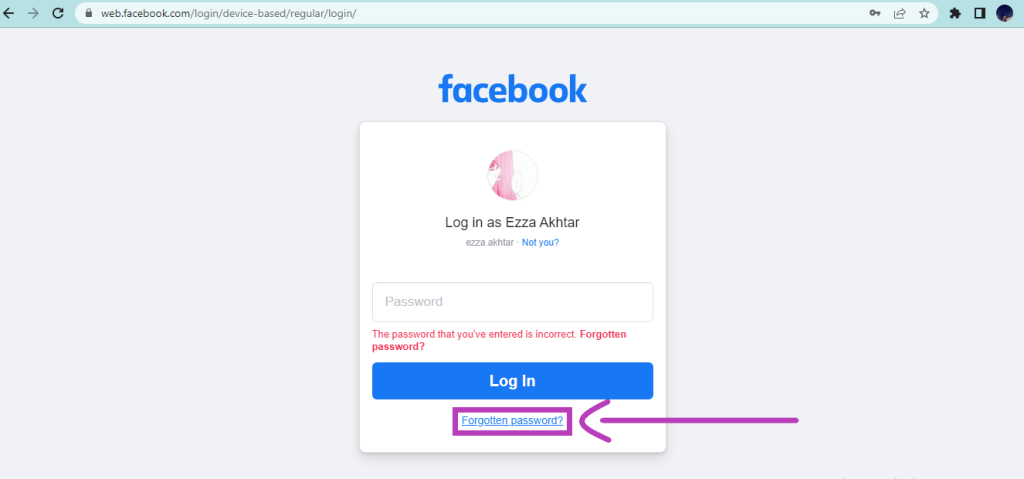
Select Forgotten password - Select your phone number or email address from the following prompt to get the security code. Then, you will need to either login into your email or access your phone number’s SMS messages to restore the password.
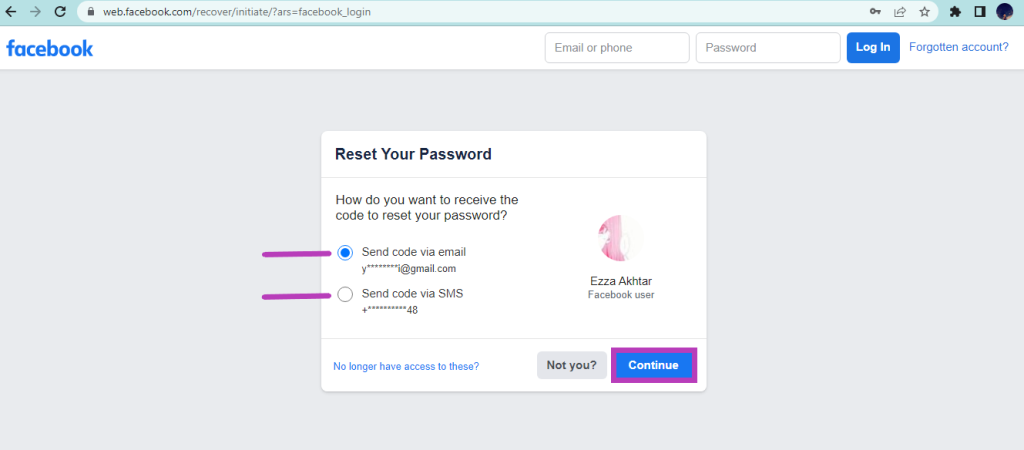
Select one of the options to receive the security code - Enter the code you received and select Continue.
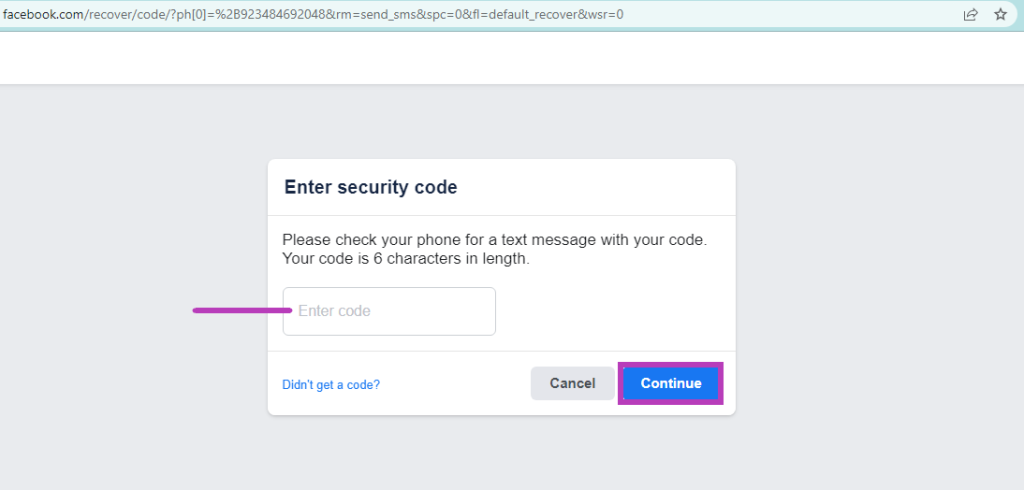
Enter the security code in the box and continue - Now, type in your new password and select Continue.
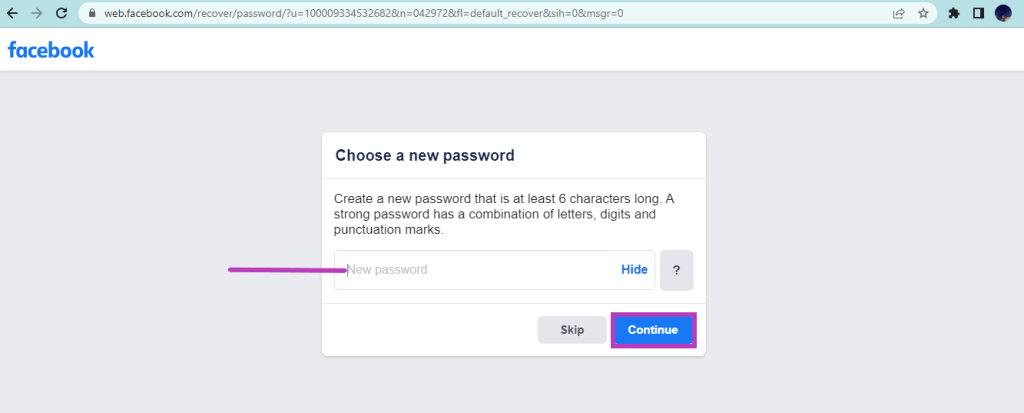
Enter your new password - You can now log in to your account with the new password!

I’m Susan, the founder of Learn Social Media. As a caregiver I regularly work with vulnerable groups, such as with the elderly in nursing homes, and children with disabilities in schools. During my work, I noticed these groups struggle to keep up with new technologies.
When it comes to social media, this often led to feelings of isolation and “being left out”. The thrill I experienced creating TikTok dance videos with children with disabilities, or helping elderly folks reconnect with old friends and loved ones on Facebook, is what inspired me to launch this project.
Read more about my project here: About Learn Social Media. Feel free to contact me at any time at [email protected], I spend my evenings responding to ALL messages!