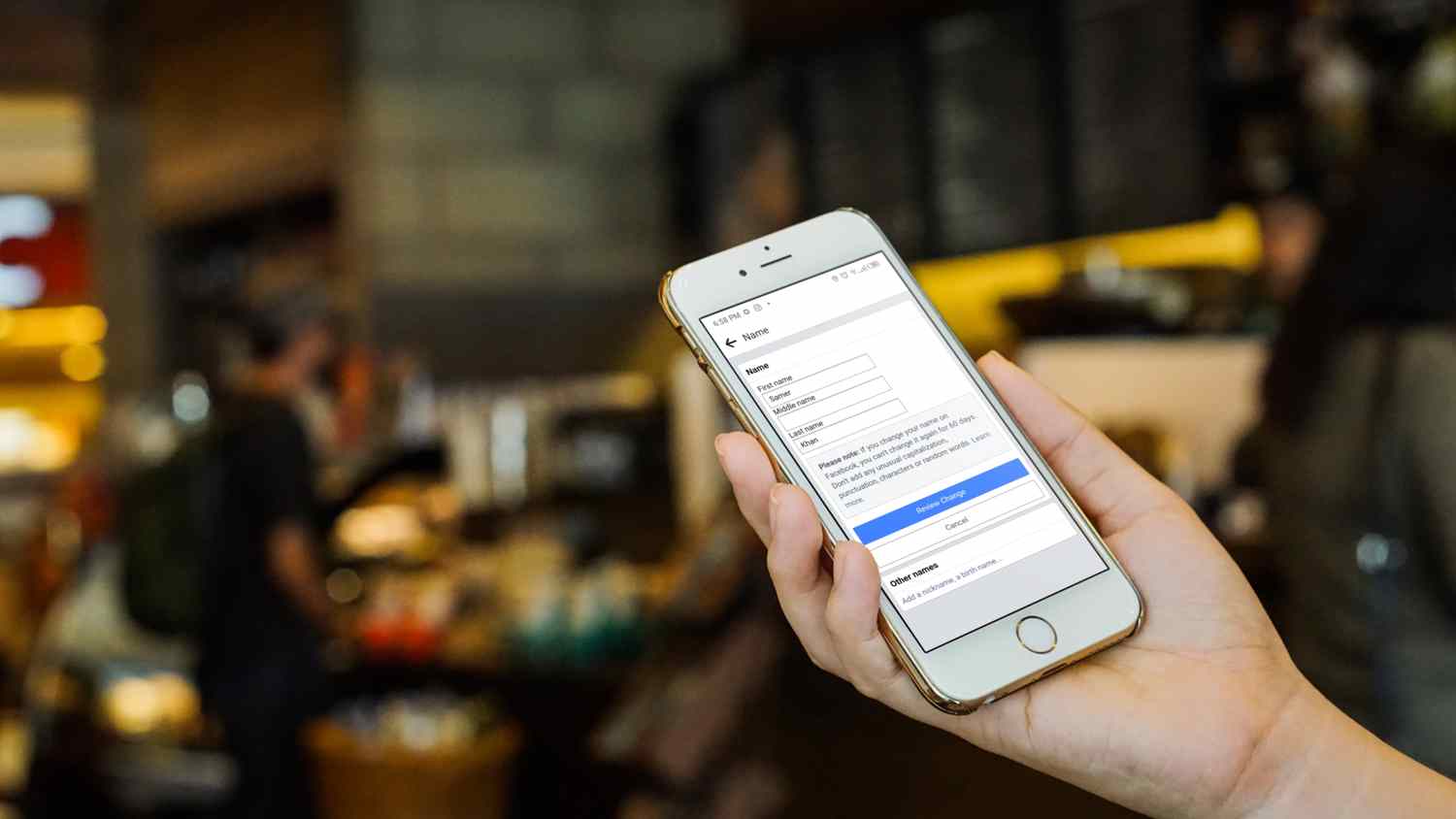
If you want to change your name due to a spelling error, for privacy reasons, or because you changed your name on your ID. Before changing your Facebook name must know that Facebook has some rules about the type of name you choose.
Here’s a summary of things you cannot do:
- Not allowed to add numbers, symbols, punctuations, repeating characters, or non-standard capitalization.
- Can’t add an organization name unless it’s your page.
- No religious or professional titles.
- Can’t add characters from more than one language.
- The name should be your real name that appears on your official ID.
- Not allowed to use names against the Facebook policy or violate their rules.
- Can’t use vulgar or offensive terms.
- Once you change your name, you can’t do it again for 60 days.
Change your Facebook name on Android or iOS
- Go to the Facebook mobile app.
- Tap the three-lined bar option at the top right corner of your screen.

Go to the menu at the top right corner. - Next, tap on the gear icon in the top-right corner to go to Settings & privacy.

Tap on the gear icon to go to Settings & privacy - Go to Personal and account information under Account.

Go to Personal and account information. - Here, tap on the Name settings.
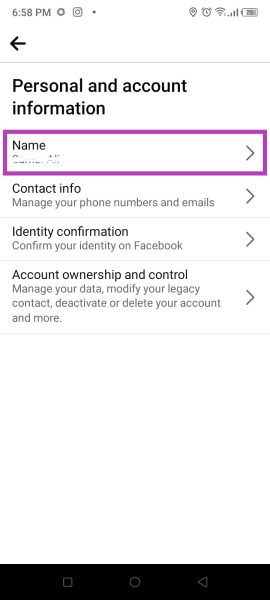
Tap the Name option to go to name change settings - You will have to enter your First name, Middle name, and Last name in their respective boxes. Adding a Middle name is optional. Tap on Review Change to continue.

Enter your new name and Review Change - You will be asked to Preview Your New Name. You can select if you want your Surname to appear at the start or end of the name. Finally, enter your password and press the Save changes button to confirm the changes.

Enter your password and Save changes - Your name on Facebook will now be set!
Change your Facebook name on computer
- Go to Facebook and sign in.
- Open the Facebook menu by clicking on the tiny downward arrow at the top right corner of your screen.
- From the drop-down list, select Settings & privacy.

Go to Settings & privacy in the Facebook menu - Next, select Settings.

Click Settings from the drown-down list - Select General in the left sidebar. Then, click on Edit next to the Name option.
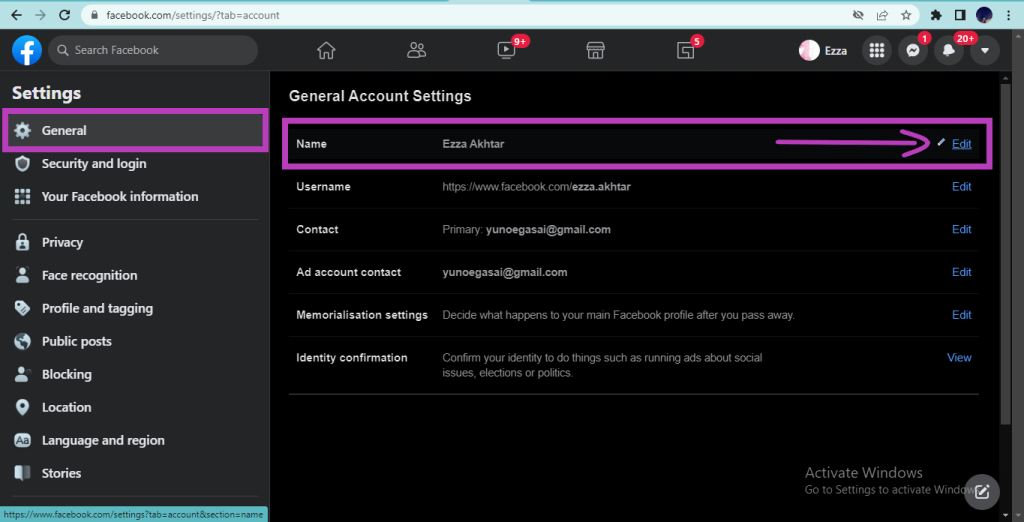
Click on Edit next to the Name option. - Three boxes asking for your First name, Middle name, and Surname will appear. Adding a middle name is unnecessary, but you must enter your first and last name in their respective boxes.
- After that, click on Review Change to continue.

Enter the new name in the respective boxes - Now, a dialogue box will appear asking to Preview your new name. You can choose whether you want your Surname to appear before your First name or vice versa. After previewing, enter your Password and click on Save changes.

Enter your password and click on Save changes - That’s it! Your name has been changed successfully.
I’m Susan, the founder of Learn Social Media. As a caregiver I regularly work with vulnerable groups, such as with the elderly in nursing homes, and children with disabilities in schools. During my work, I noticed these groups struggle to keep up with new technologies.
When it comes to social media, this often led to feelings of isolation and “being left out”. The thrill I experienced creating TikTok dance videos with children with disabilities, or helping elderly folks reconnect with old friends and loved ones on Facebook, is what inspired me to launch this project.
Read more about my project here: About Learn Social Media. Feel free to contact me at any time at [email protected], I spend my evenings responding to ALL messages!