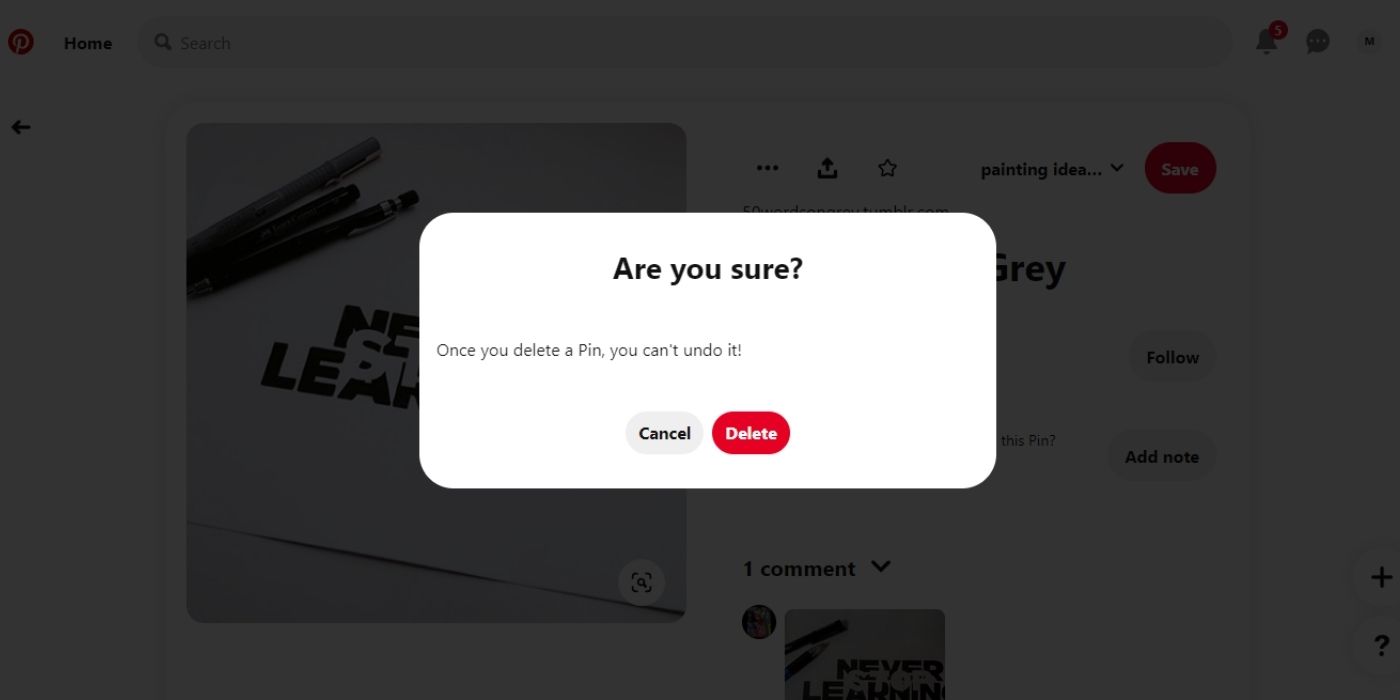
Pinterest is a virtual pinboard with the options to organize or bookmark your favorite things in a single place. But if you feel like your Pinterest boards have become cluttered with unused Pins, you can get rid of them in a few steps. Deleting Pins is useful for reorganizing your boards which will also boost engagement with your profile.
Note: Deleting a Pin means that the image, video, or story will be permanently removed from the current Pinterest board. Once Pins are deleted, they cannot be restored.
Delete Pins on the App
- Launch the Pinterest app on your iPhone and Log in to your Pinterest account.

Log in to your Pinterest account on the app - Once you are signed in to your Pinterest account, tap the Profile Picture icon in the bottom-right corner of the app to open your Profile page.

Click on the Profile Picture inside the Pinterest app - Your Pins will show under the “Saved” section if you saved them from another person or source, whereas the ones you create will go under the “Created” section. You can either browse through your boards or search for the relevant Pin using the Search bar. Click on a pin to select it.

Search for the Pin inside the Pinterest app - Open the Pin for more options. Tap on the three horizontal dots in the upper right corner of the screen.

Click on the three horizontal dots icon for more options - Select Edit Pin from the menu to make changes.

Select Edit Pin for editing options - You can also access the “Edit” section by long-pressing any Pin, then selecting the Pencil icon.

Click on the Pencil icon to Edit the Pin - Tap Delete this Pin at the bottom left corner of the editing screen.

Click on Delete this Pin - Tap Delete in the prompt pop up on the screen.
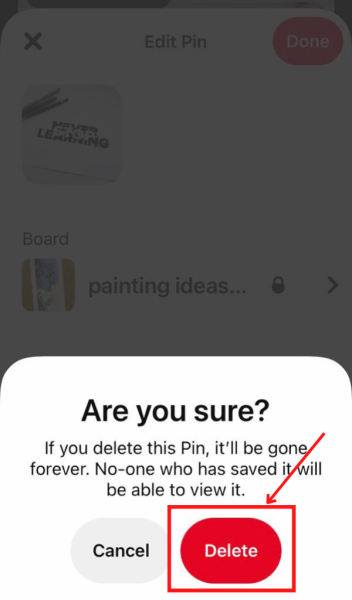
Click on Delete to confirm - To delete multiple Pins, select or search for the board from where you want to delete Pins in bulk. Tap on the Organize option at the top of the board.

Tap on Organize to rearrange the board inside the Pinterest app - The organize option allows you to select multiple Pins at once just by tapping on each Pin. If you want to select all the Pins, tap Select all in the top right corner. Once you have chosen the Pins you want to delete, tap on the Bin icon at the bottom.
Note: If you want to unselect a Pin, simply tap on it again.
Tap and select multiple Pins - Tap Delete to confirm your choice.

Confirm by clicking on Delete
Delete Pins on the Computer
- Open Pinterest on your browser Log in to your Pinterest account.

Log in to your Pinterest account - Tap on the Profile picture or initials in the top right part of the screen next to the “Inbox”.

Your Pinterest Profile picture or initials - Similar to the Pinterest app, the Pins on the website are also divided into two sections, Created and Saved. You can also use the search bar to search for a particular Pin.

Search for the Pin on Pinterest webpage - Open the Pin you want to delete and select the three horizontal dots to open the menu. Tap on Edit Pin.

Click on Edit Pin You can also access the “Edit” section without opening the Pin. Once inside the relevant board, hover the cursor on the Pin to be deleted. Tap on the Pencil icon to start editing.

Select the Pencil icon - You can change the board, the section, and add a note about the Pin in the editing screen. To delete the Pin, tap Delete in the bottom left corner.
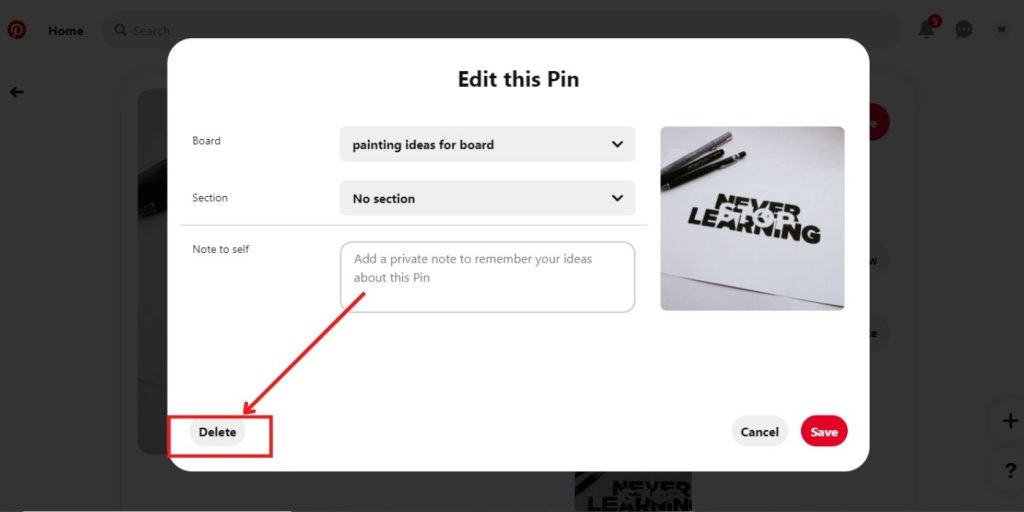
Click on Delete in the bottom left corner - In the next pop-up message, select Delete again to confirm your choice.

Tap on Delete - To delete multiple Pins, open the relevant board under the “Saved” or “Created” section and select Organize to make all the Pins selectable.

Tap Organize to select Pins in bulk - As you click on the Pins, a black checkmark will appear at the bottom of selected Pins. Tap on the Bin icon to delete all of them.

Click on the Bin icon to delete selected Pins - Select Delete to remove these Pins.
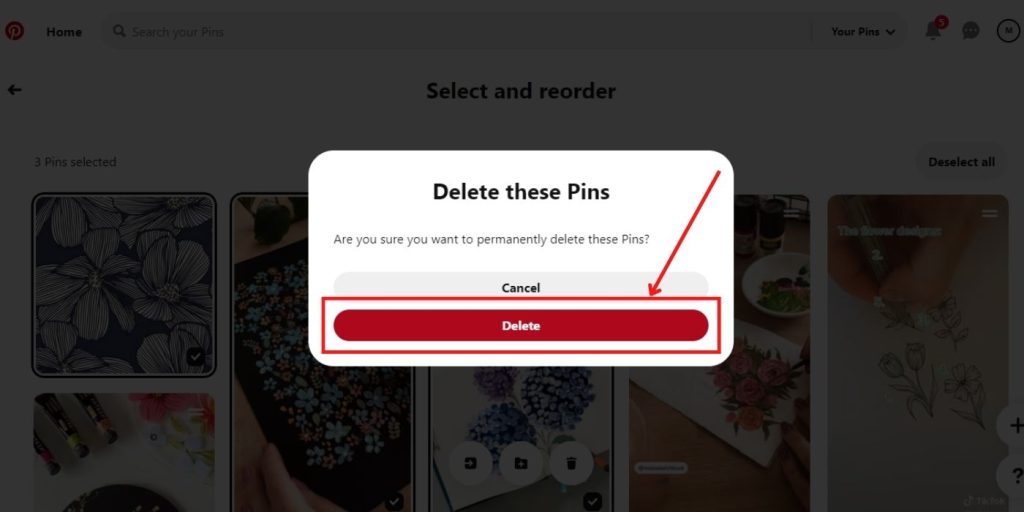
Tap Delete to permanently remove multiple Pins
I’m Susan, the founder of Learn Social Media. As a caregiver I regularly work with vulnerable groups, such as with the elderly in nursing homes, and children with disabilities in schools. During my work, I noticed these groups struggle to keep up with new technologies.
When it comes to social media, this often led to feelings of isolation and “being left out”. The thrill I experienced creating TikTok dance videos with children with disabilities, or helping elderly folks reconnect with old friends and loved ones on Facebook, is what inspired me to launch this project.
Read more about my project here: About Learn Social Media. Feel free to contact me at any time at [email protected], I spend my evenings responding to ALL messages!