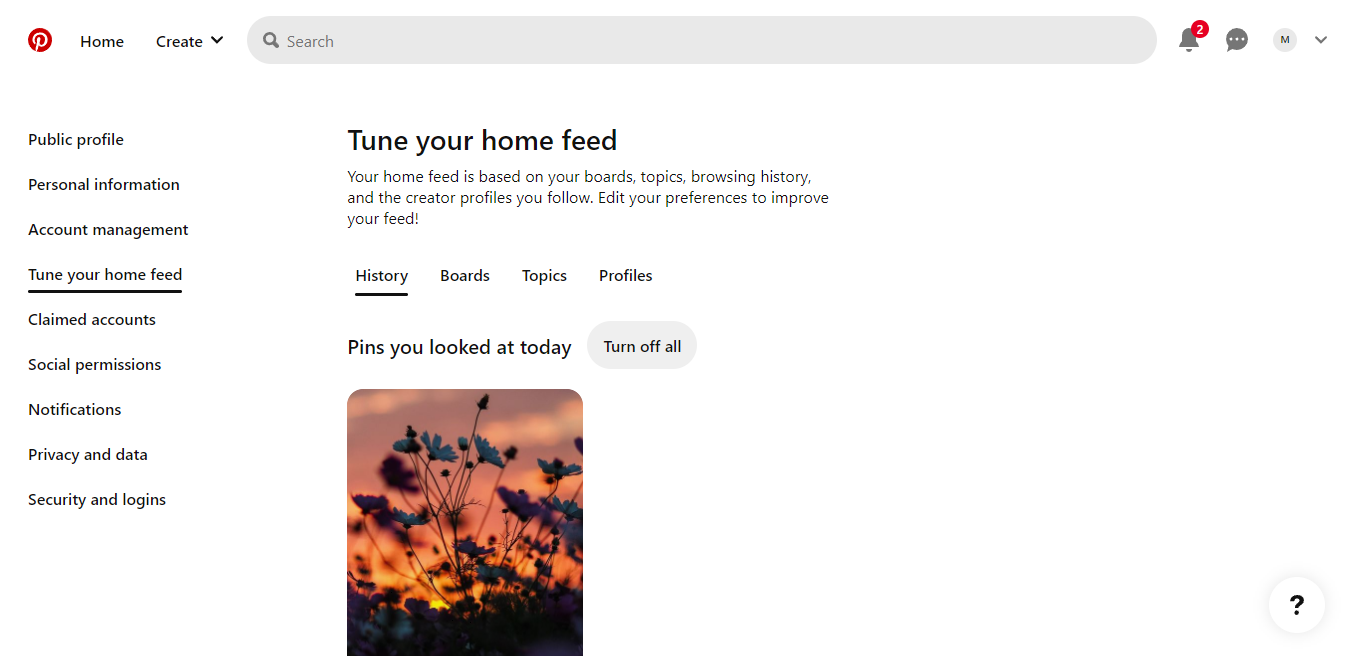
Your Pinterest home feed shows curated content that Pinterest thinks you will like. Pinterest uses the data from the following information to create a unique home feed for each user:
- The accounts you follow
- The content you search for
- Pins you recently looked at
- Your Pinterest Boards
If your homepage lacks pins, boards, or topics you enjoy or contains content you don’t want to see, you can reset your homepage fully. Alternatively, you can select specific topics, users, or boards to stop showing on your feed.
Reset Pinterest Feed on iPhone or Android
- Launch Pinterest and log in to your account.
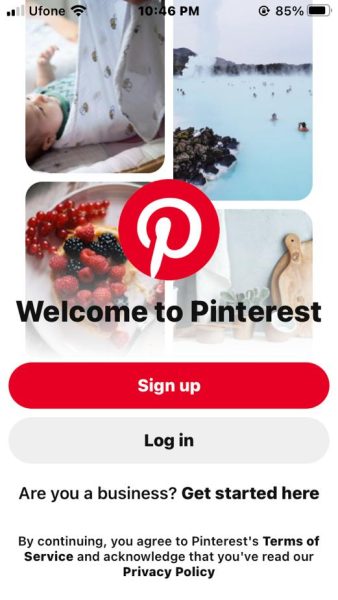
Log in to Pinterest. - Tap on the search icon in the bottom menu to open the search bar.
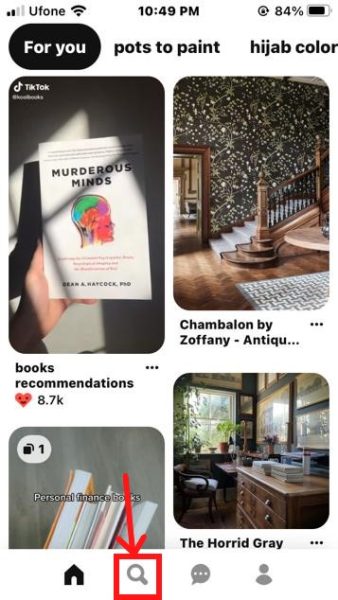
Tap on the search icon. - You will see your search history once you tap on the Search bar. Remove the search results by selecting the cross next to the searched item.
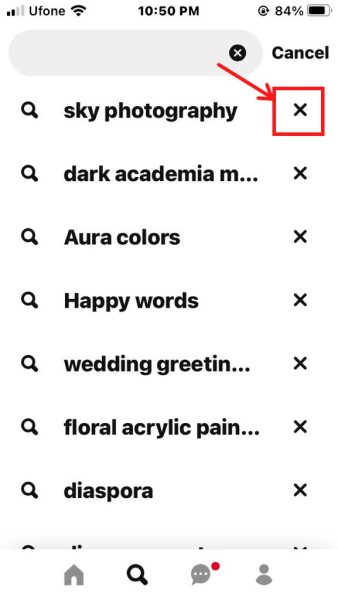
Tap on the cross to remove the search result. - Tap on the Profile picture icon in the bottom right of the app menu.
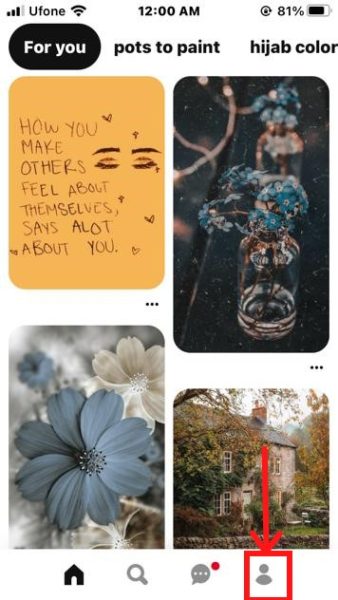
Tap on the Profile picture icon. - Next, tap on the three dots in the top right corner.
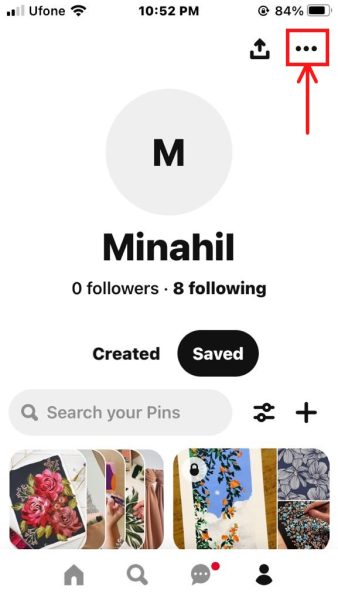
Tap on the three dots menu. - Tap on Settings under Profile.
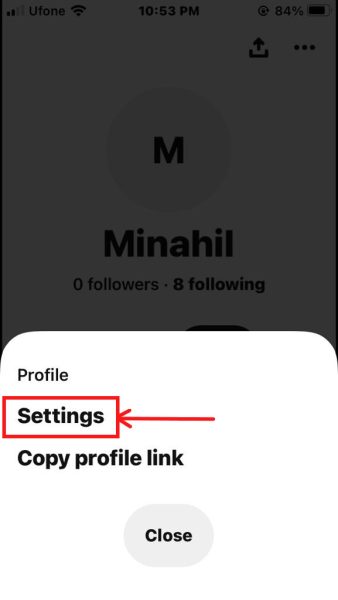
Tap on settings. - Now select Home feed tuner from the Account information menu.
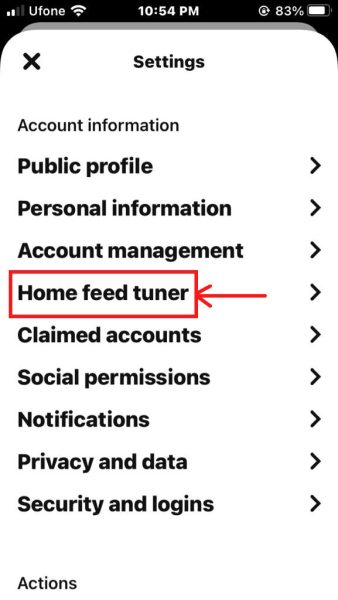
Select Home feed tuner under Account information. - You will find three tabs at the top of the Home feed tuner menu in the Pinterest app. The first one is the Boards tab. Enable or disable boards of your choice to customize the home feed using the toggle bar next to the Board name.
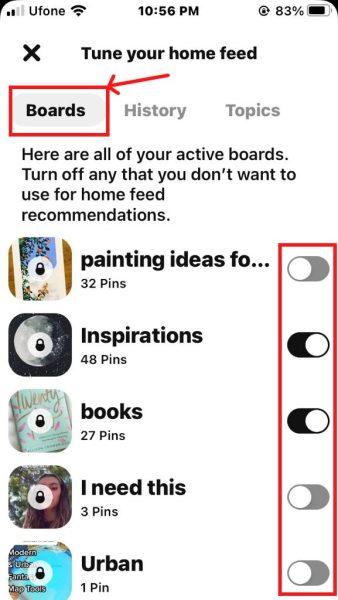
Turn off Boards recommendations. - The History tab has a collection of Pins you recently visited. Use the Turn off feature at the bottom of the Pin to limit results related to a specific Pin. You can scroll down to view your entire Pin history.
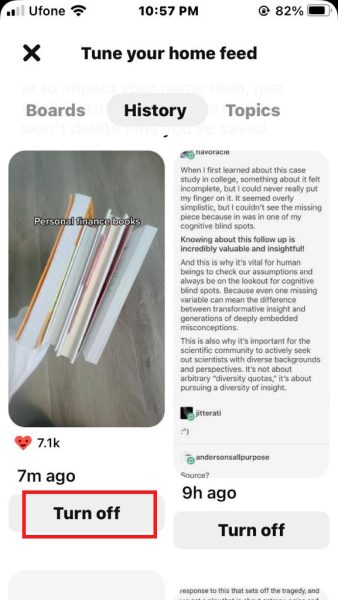
Turn off Pins in the History tab. - The last tab is Topics. Click on the Remove button to get rid of any topics you are no longer interested in.
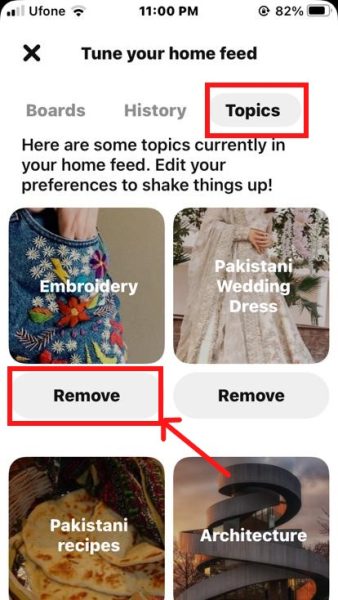
Remove the irrelevant topics. - Tap on Following on the Profile page to edit the list of people you follow on Pinterest.
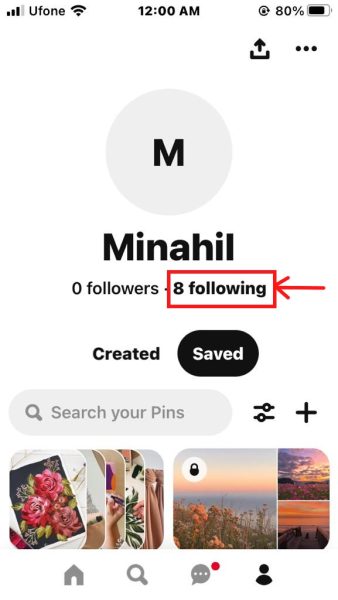
Tap on Following to open the list of users you follow. - You frequently see the content of these followed accounts on your home feed. By unfollowing users, you remove posts from these profiles from your feed.
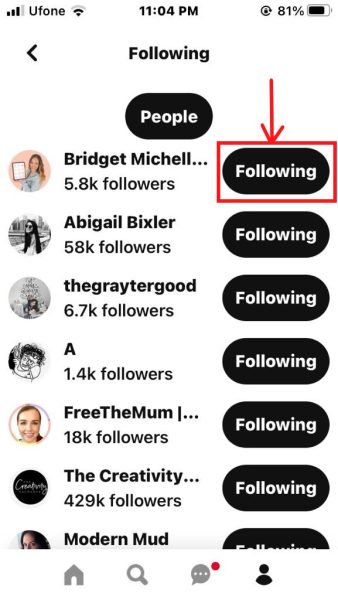
Unfollow Pinterest users. - The last step is to clear your app cache. Tap on Privacy and data in the Account information menu.
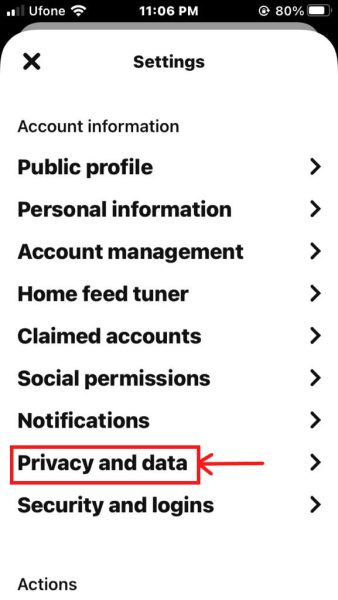
Privacy and data option under Account information. - Scroll down and select Clear app cache. You will see a pop-up message at the top of the screen saying, “App cache cleared.”
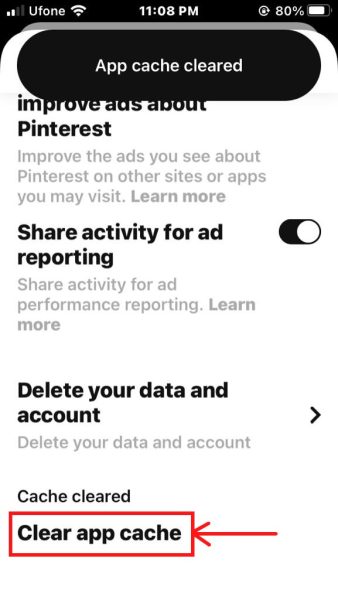
Clear app cache for Pinterest. Your Pinterest home feed is now reset!
Reset Pinterest Feed on Computer
- Launch the Pinterest website and log in to your account.

Log in to Pinterest. - Click on the Search bar at the top of the home feed. Select the cross to remove recent searches.
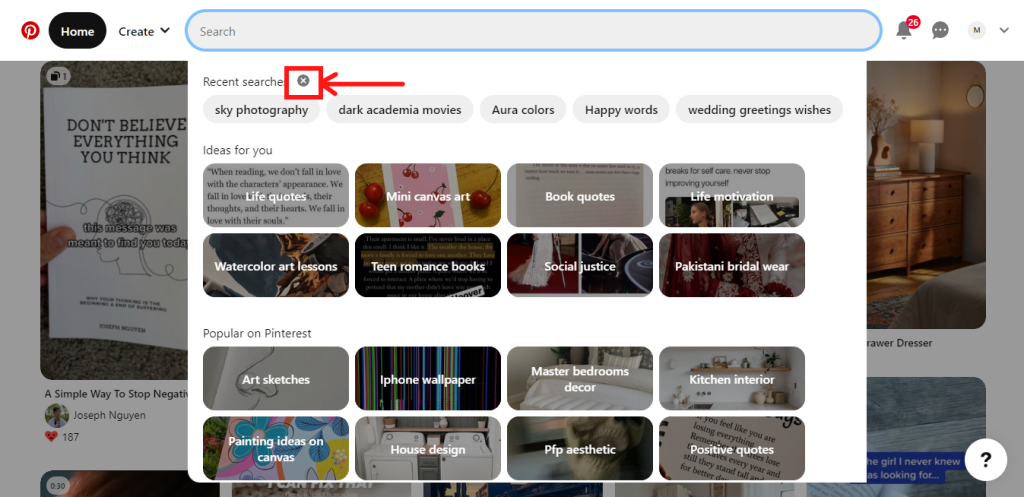
Clear the Pinterest search history. - Click on the downward arrow next to your profile picture in the top right of the home page. A drop-down menu will open with multiple options. Select Tune your home feed to customize your home feed.
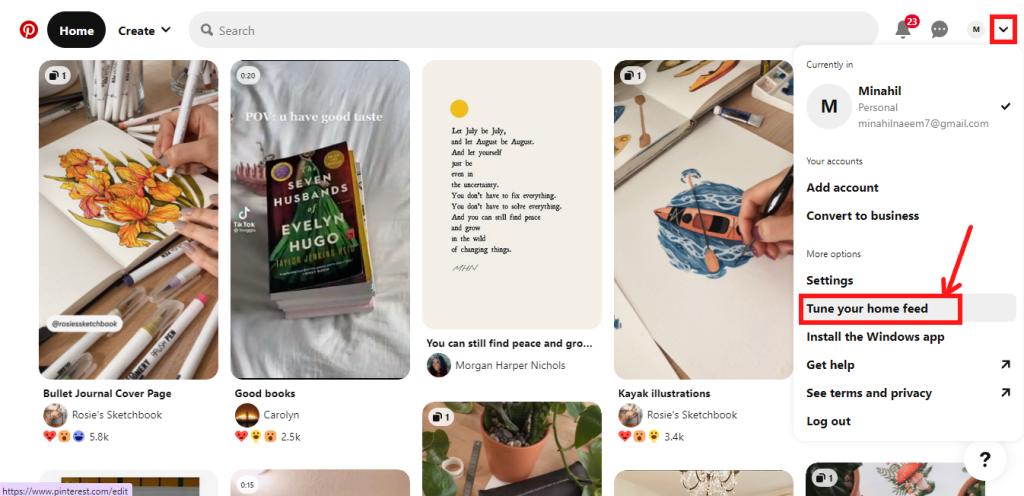
Customize your Pinterest home feed. - You will find four tabs under Tune your home feed: History, Boards, Topics, and Profiles.
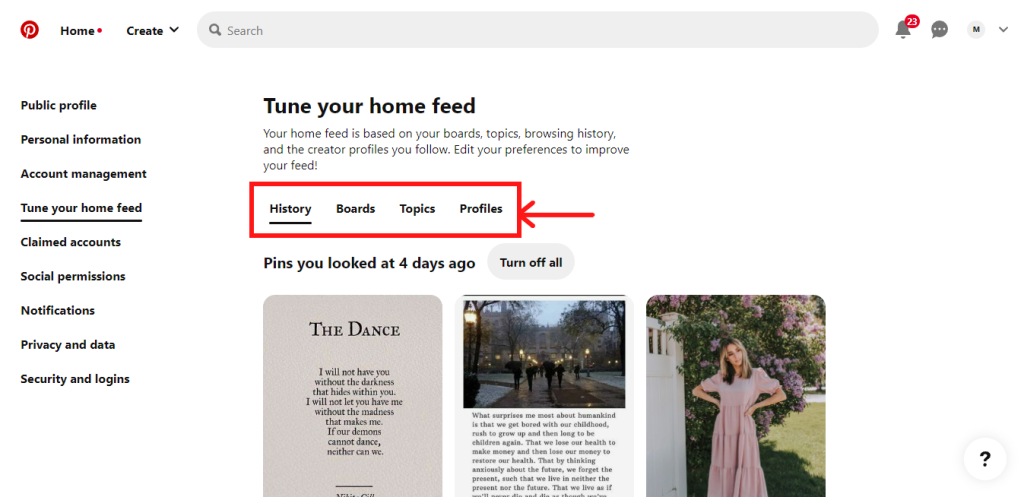
Tune your Home Feed tabs on the Pinterest website. - Scroll through the History tab to find all the Pins you looked at. You can turn off individual Pins using the Turn off button at the bottom of the Pin or the Turn off all button at the top. You will no longer see content related to the turned-off Pins.
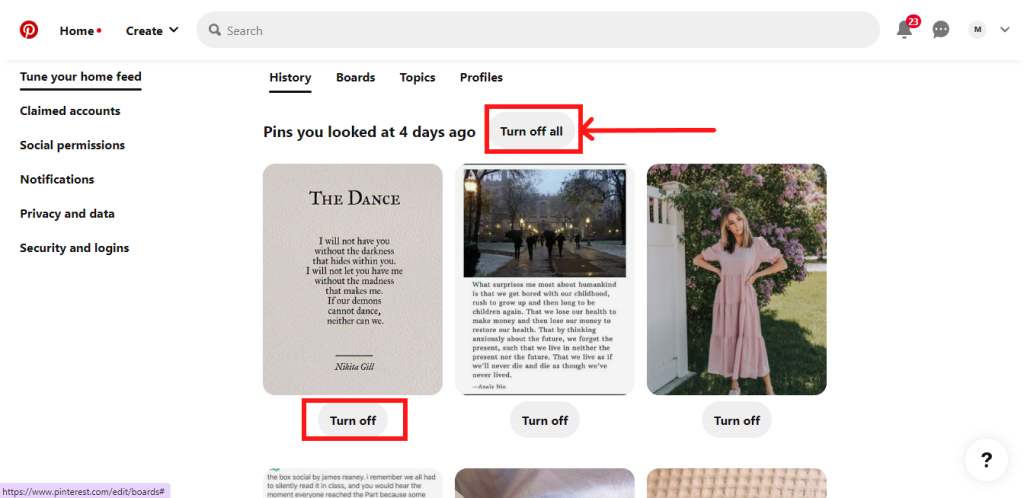
Turn off the suggestions related to your Pin history. - The Boards tab will have the complete list of Boards you have created. The Pinterest algorithm uses these Boards to recommend Pins for your home feed. However, you can control these recommendations by turning on/off the toggle next to the Board name.
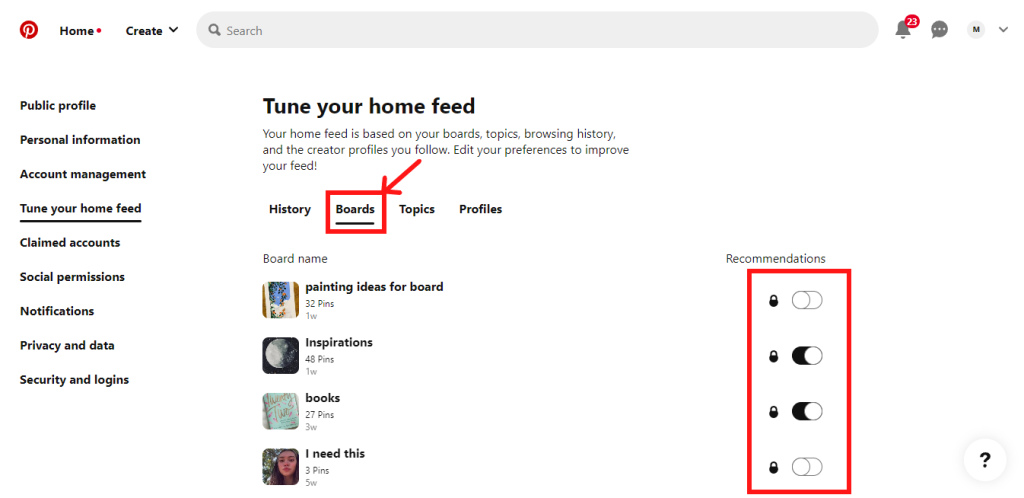
Turn off Boards suggestions. - You can customize your Pinterest content based on topics of your choice in the Topics tab. Unfollow any of the topics using the Remove button under the topic image.
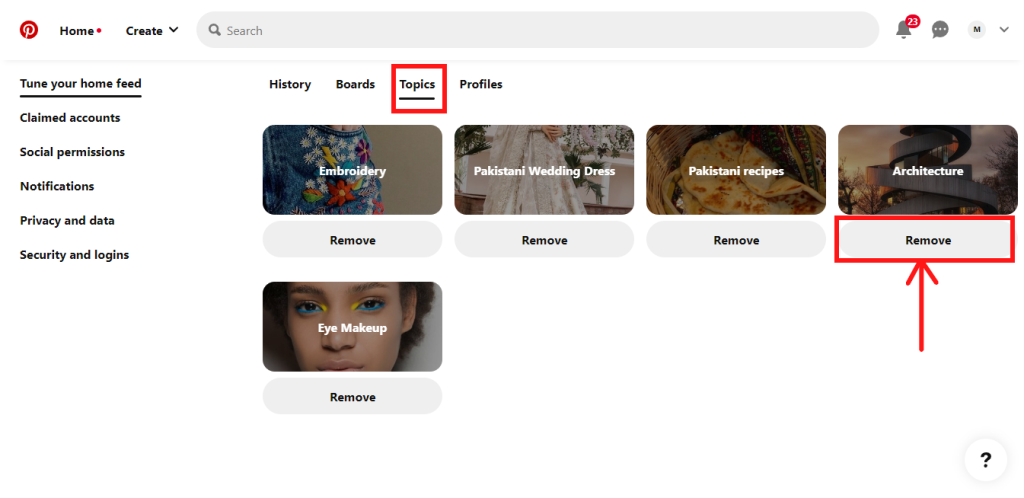
Remove one or more topics. - The last step is to edit the list of accounts you follow on Pinterest under the Profiles tab. Finally, click on the Following button to unfollow.
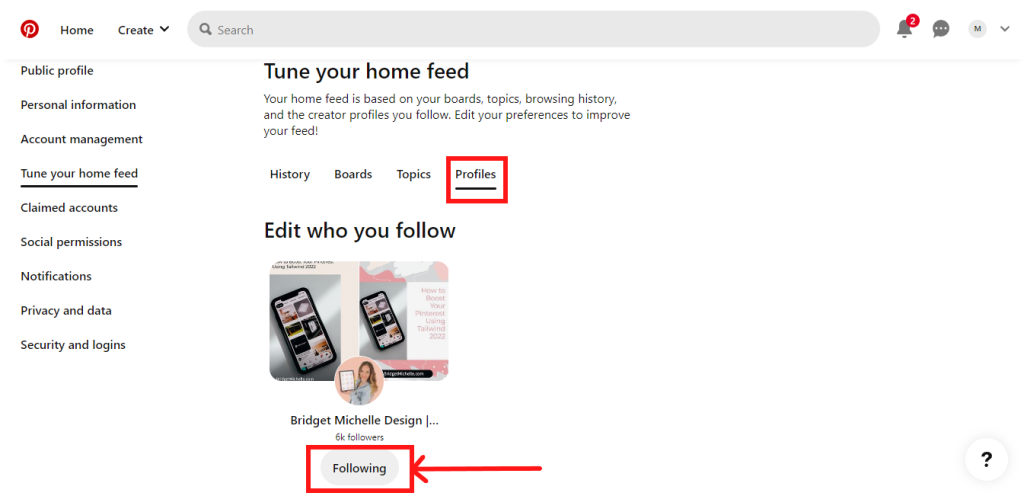
Unfollow other Pinterest users. The next time you log in to your Pinterest account, your home feed will refresh based on these new changes.
I’m Susan, the founder of Learn Social Media. As a caregiver I regularly work with vulnerable groups, such as with the elderly in nursing homes, and children with disabilities in schools. During my work, I noticed these groups struggle to keep up with new technologies.
When it comes to social media, this often led to feelings of isolation and “being left out”. The thrill I experienced creating TikTok dance videos with children with disabilities, or helping elderly folks reconnect with old friends and loved ones on Facebook, is what inspired me to launch this project.
Read more about my project here: About Learn Social Media. Feel free to contact me at any time at [email protected], I spend my evenings responding to ALL messages!